9 Screen Time Tracker Templates for Clear Daily Device Records
A screen time tracker can help you keep a clear manual record of device use, routine tasks or time earned through an agreed reward system. Those are different jobs, and the right worksheet depends on which one you want to record. These nine downloads range from a single A4 checklist to repeated logbook pages and editable sheets inside wider planners.
The products reviewed here are planning resources rather than automated monitoring apps. Every entry explains what the listing actually supplies and where its specifications need checking. If your wider aim is to keep consistent routines, our habit tracker guide offers related formats.
In this guide
Choose a Screen Time Tracker for the Record You Need
For actual device time, choose a grid with dates, activities or devices and enough room for consistent units. For routine completion, a checklist may be easier to use. For earned screen time, keep credits and time used understandable so an earned allowance is not mistaken for the actual duration of use.
Decide whether the page records one person or a household, then use the same convention each day. A printable or Canva design does not automatically measure anything. If you copy figures from a device’s built-in report, note the source and time period so your handwritten records remain comparable.
1. Colorful Screen Time Checklists and a Weekly Usage Grid
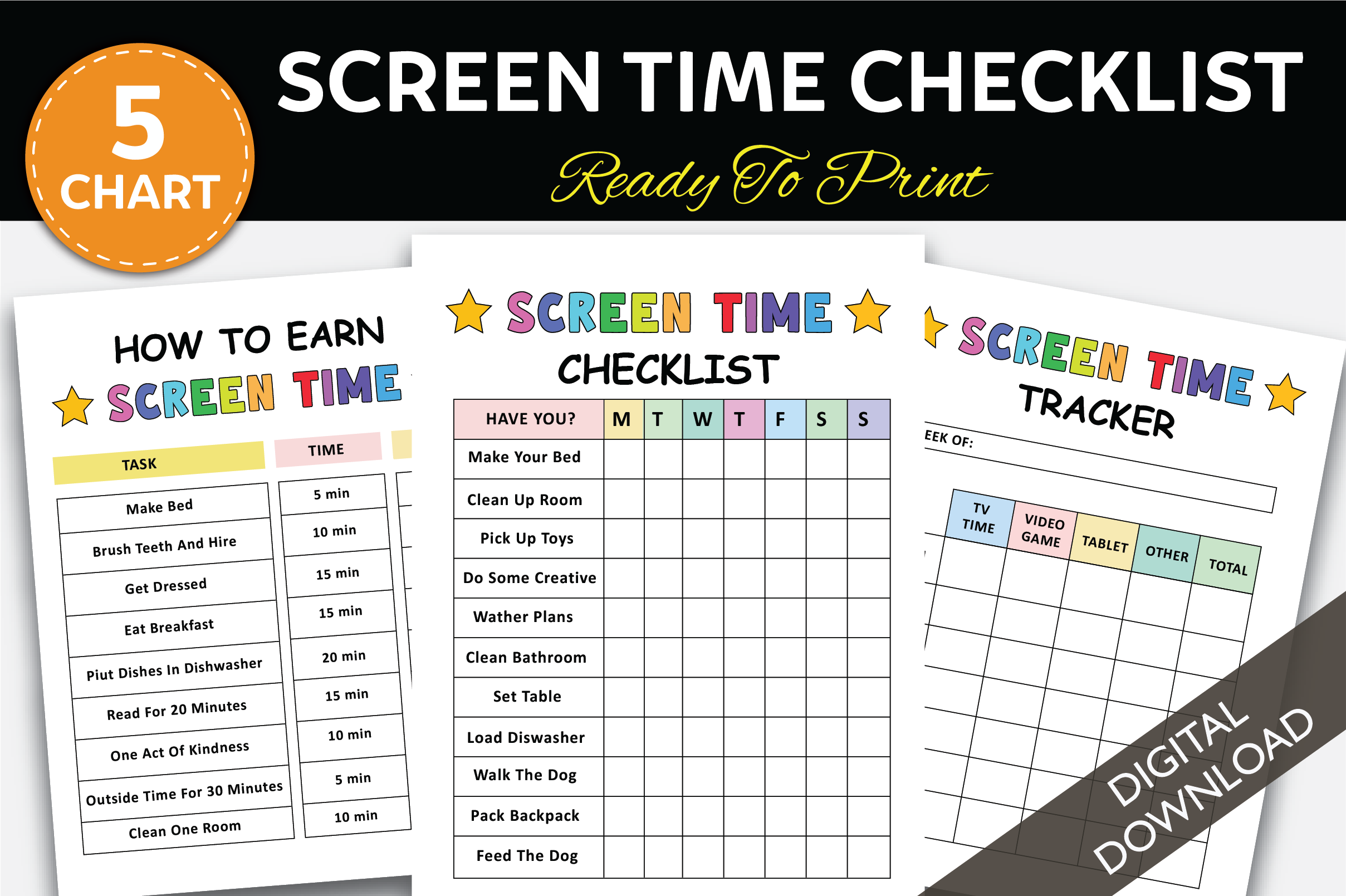
BookWorm Haven’s Screen Time Checklist brings routine tasks and device-use recording together. The inspected preview advertises five charts and shows a weekly checklist, a time-recording grid and a sheet for earning screen time. The written description confirms its focus on routines, priorities and screen-use rules, but does not clearly inventory the file formats or page dimensions.
Choose it when a visible family checklist is more useful than a long journal. Agree on what each entry means before you begin: routine completion and actual device-use time answer different questions. The preview’s editable-design wording should be verified in the downloaded package before you assume a Canva link is supplied. These are manual worksheets; the listing does not establish automatic device monitoring or a ready-made rule for how much screen time is appropriate.
2. Single-Page A4 Screen Time Checklist
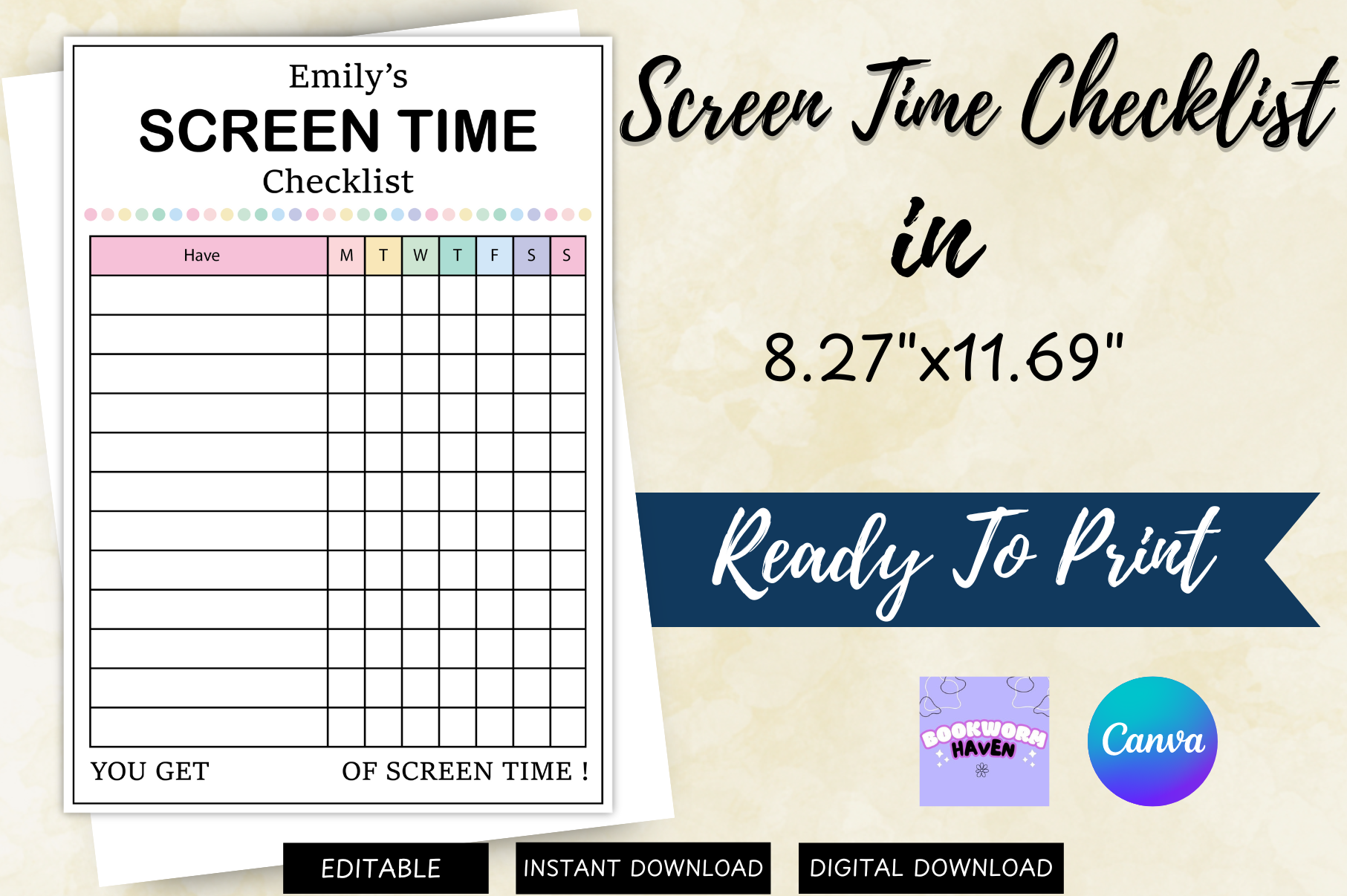
BookWorm Haven’s Screen Time Checklist Placement is a single-page resource supplied as PDF and PNG at 8.27 × 11.69 inches, an A4-sized format. The preview shows a weekly grid with space to total screen time. It is a more contained alternative to the designer’s larger collections when you want one sheet to keep near a desk or in a family folder.
Use the page for a clearly defined week and write consistent units in the available spaces. A printed copy is easy to share during a conversation about routines, while the PNG can be placed in another planning document. The preview advertises Canva and editability, but the written delivery list names only PDF and PNG. Confirm whether an editing link is included if changing the original layout is essential to your workflow.
3. Eighteen Screen Time Worksheets for Family Review
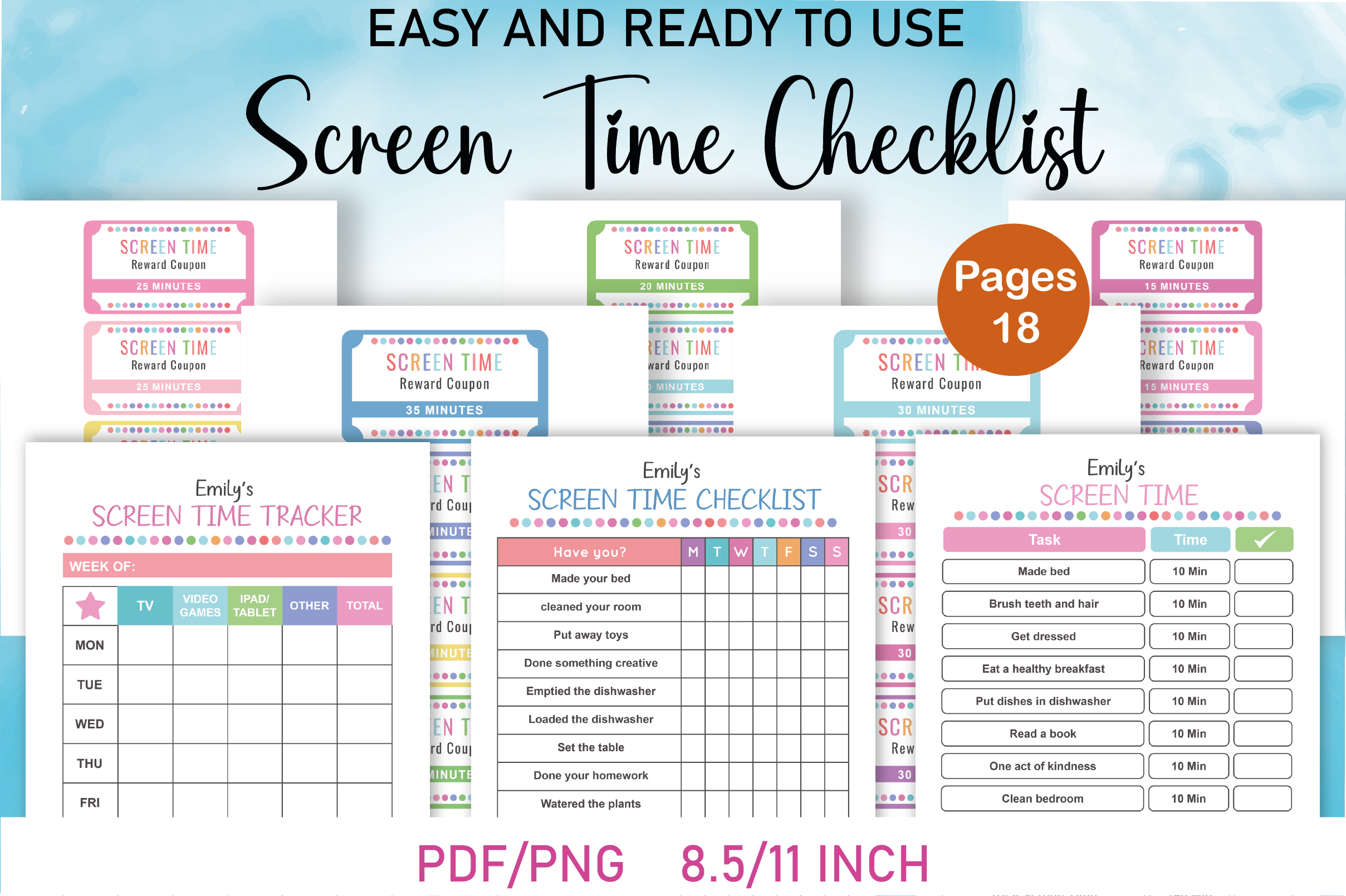
BookWorm Haven’s Screen Time Checklist Printable is described as eighteen pages for daily and weekly device-use tracking, limits and offline activities. The preview names PDF and PNG and shows several worksheet layouts. There is a visible description conflict: the text calls the set black and white, while the displayed pages have colored headings and accents. Check the actual files if an ink-saving monochrome version matters.
Choose the larger collection when you want to compare several ways of recording the same routine before settling on one. The listed size is 11 × 8.5 inches; confirm orientation in the file rather than assuming every layout matches a portrait binder. Begin with one daily sheet and one weekly review. The product is a manual family planning resource, so any totals still depend on what you enter or copy from your devices.
4. Earned Screen Time Chart with Vector Source Files
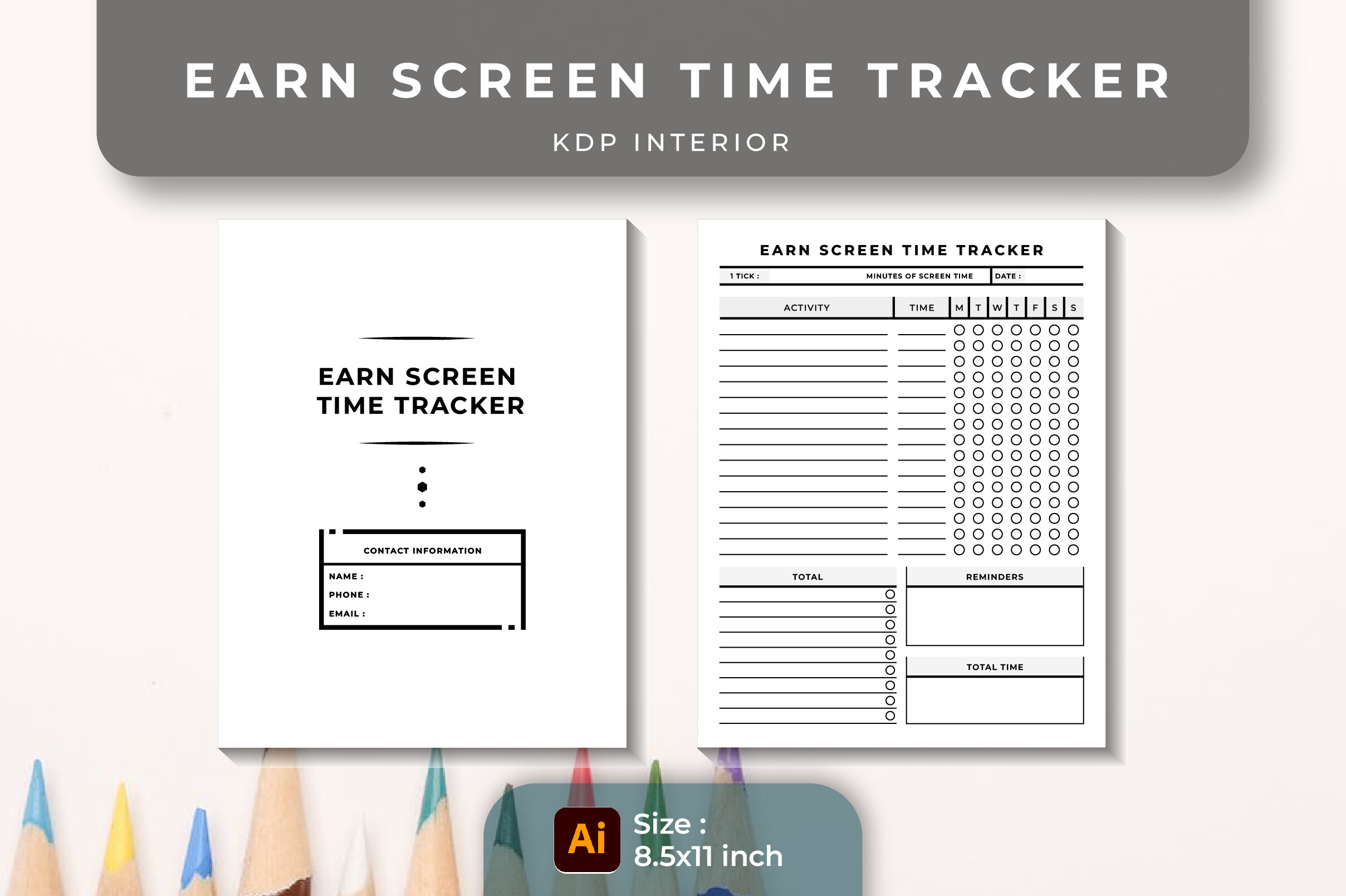
srempire’s Earn Screen Time Tracker Chart for Kids uses a rewards-based layout for recording tasks and earned device time. The package lists a 120-page PDF plus editable Illustrator AI and EPS sources, two SVGs, two PNGs and two JPGs at 8.5 × 11 inches and 300 DPI. The long PDF is the total interior length, rather than evidence of 120 unique tracker designs.
This is useful when your household has already chosen a task-and-reward approach and needs a consistent visual record. Agree on the activities, credit amounts and how completed time is recorded before introducing the chart. Vector sources are helpful for adapting labels in compatible design software, but they are not a confirmed Canva template. The resource supplies a tracking structure; it does not automatically measure use, enforce limits or determine the family’s rules.
5. Repeated Device-Use Logs in a Large-Print Interior
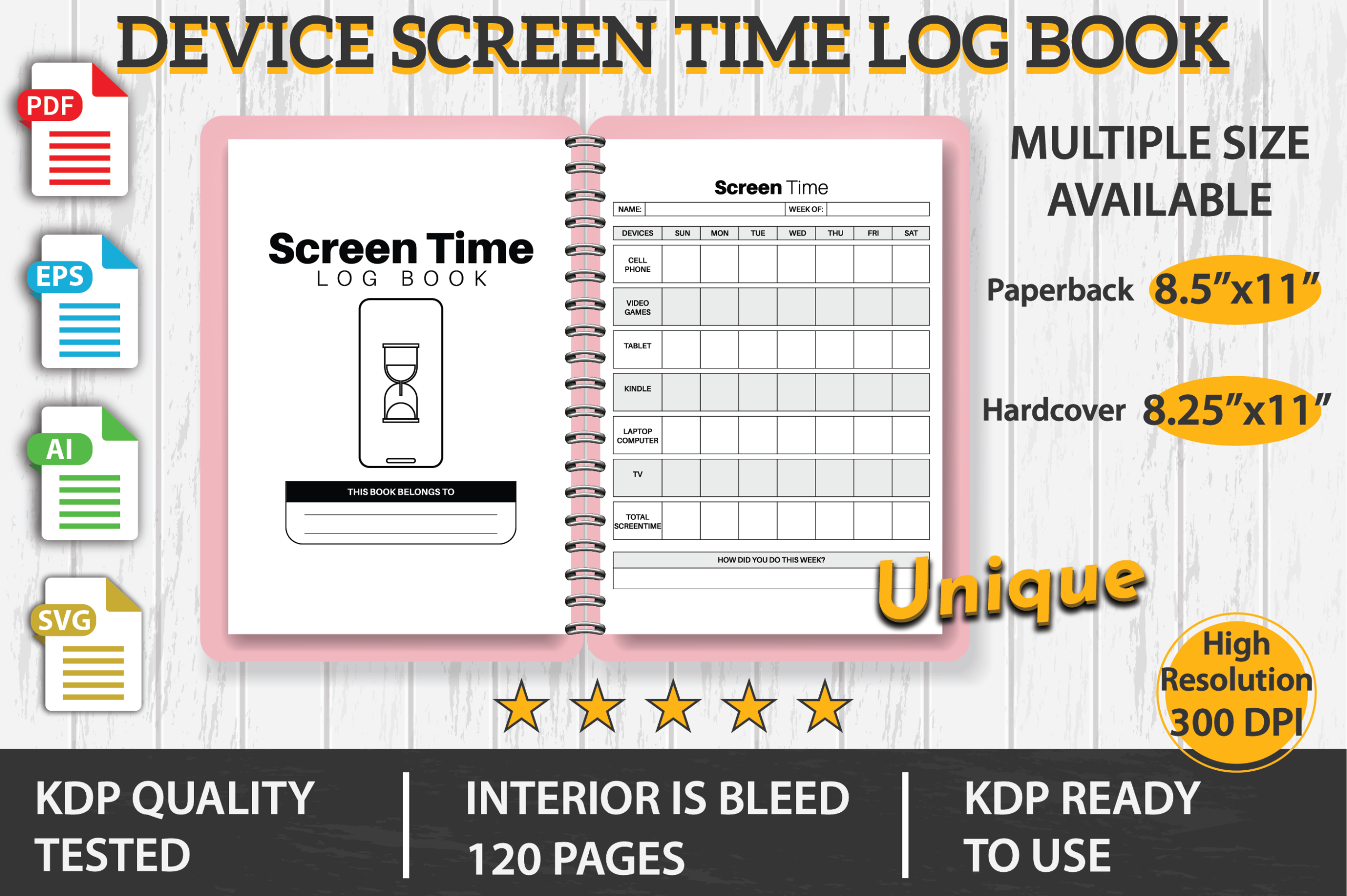
HandyBooks’ Device Screen Time Log Book is a 120-page interior with a simple usage table visible in the preview. The listed sizes are 8.5 × 11 and 8.25 × 11 inches, and the package includes PDF, EPS, AI and SVG files with bleed. Editable sources are supplied, making it a useful option for someone who wants to tailor a log rather than use a decorative family chart.
Choose it for repeated manual recording over a longer period. Decide whether you are tracking one device, one person or one type of activity, then keep that choice consistent across entries. Check the trim and bleed settings before home printing; a publishing-oriented interior may need a different print setup from a no-bleed worksheet. The preview and file list do not establish an automatic dashboard, and the page total should not be mistaken for the number of distinct layouts.
6. Daily Screen Logs and Offline Activity Pages in a Canva Journal
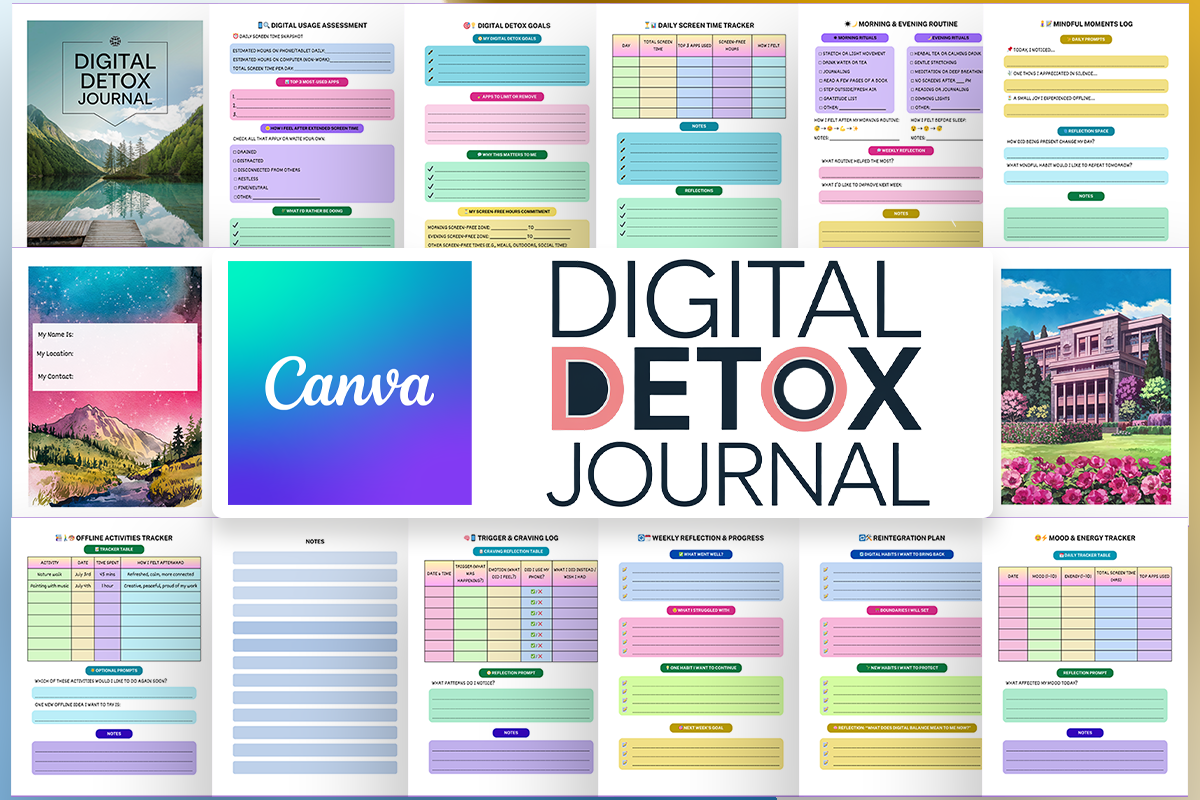
KDP Studio’s Digital Detox Journal pairs daily screen-time logs with distraction notes, offline-activity tracking and weekly reflections. The stated delivery is a 120-page printable PDF and twelve editable Canva pages at 8.5 × 11 inches, with no bleed. Those two counts describe different parts of the download: the full PDF is longer than the number of editable layouts.
Consider it when a bare number is not enough and you want to record why you reached for a device or what you did instead. Start with the screen log and one reflection page so the record remains practical to maintain. The designer’s wellbeing language is promotional; the journal is a manual reflection tool and does not establish a particular health result. Canva editing changes the design, while daily records still have to be entered in your chosen paper or annotation workflow.
7. A Screen Time Tracker beside Teen Responsibility Checklists
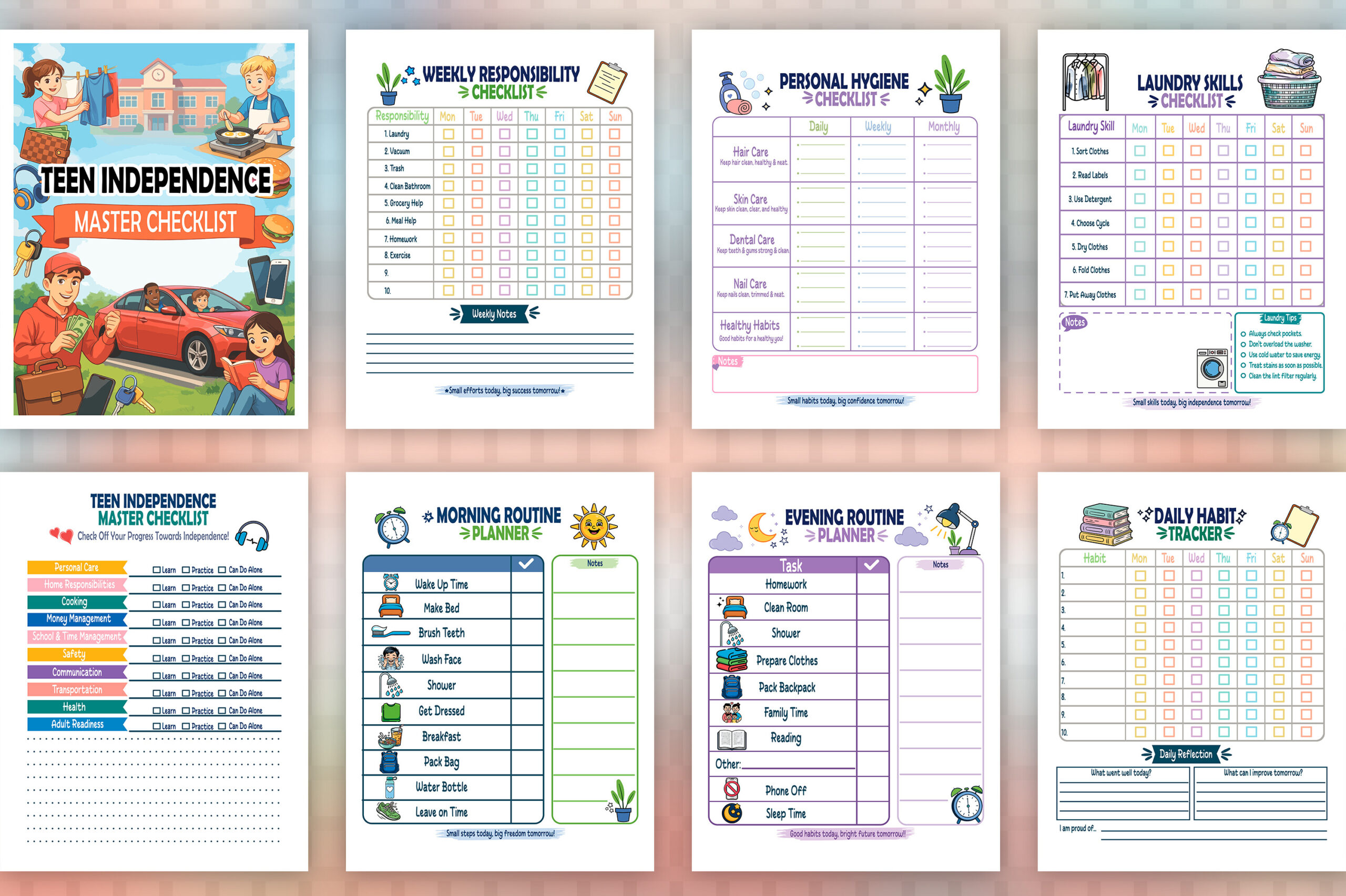
Kdp Vibe’s Teen Independence Checklist includes a screen-time tracker within a wider life-skills bundle. Morning and evening routines, weekly responsibilities, laundry, school assignments and self-care pages provide surrounding context for discussing device use. The download lists AI, PDF and SVG files plus twenty-six high-resolution JPEG pages at 300 DPI; the written description does not specify paper dimensions.
This option suits someone who wants the tracker to sit beside a teen’s other responsibilities rather than be the sole focus of a planner. Select a few relevant pages together and keep the recording expectations clear. The twenty-six-page figure refers to the stated JPEG delivery, so verify the PDF length and page size separately. There is no confirmed Canva link or live parent-child syncing feature in the listed package.
8. Editable Kids Activity Pages with a Screen Time Tracker
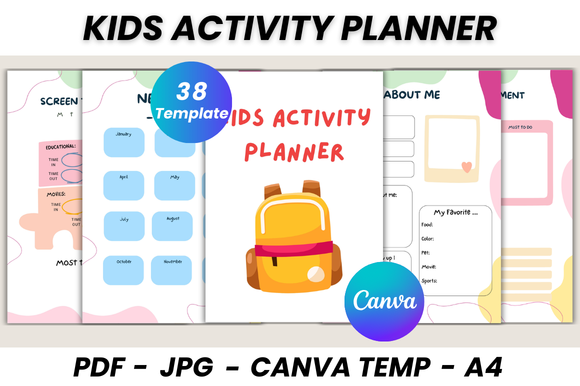
DIGITAL PRINT BOX’s Kids Activity Planner Canva Template includes a screen-time tracker among thirty-eight printable pages. The package lists a US Letter PDF, an editable Canva template and bonus JPG files, with a free Canva account described as sufficient for editing. The preview instead carries an A4 label, so check the supplied dimensions before matching the pages to an existing binder.
Choose this broader collection if device-use records need to sit alongside school schedules, habits and activity plans. Create a small working copy with the tracker and the few nearby pages your child will use. The listed new-year, monthly and birthday sections do not establish a current dated calendar, and the inspected main preview displays no year. The manual screen-time page remains a recording aid, with no automatic data import or parental-control function described.
9. A4 Canva Screen Time Tracker within a Self-Care Collection
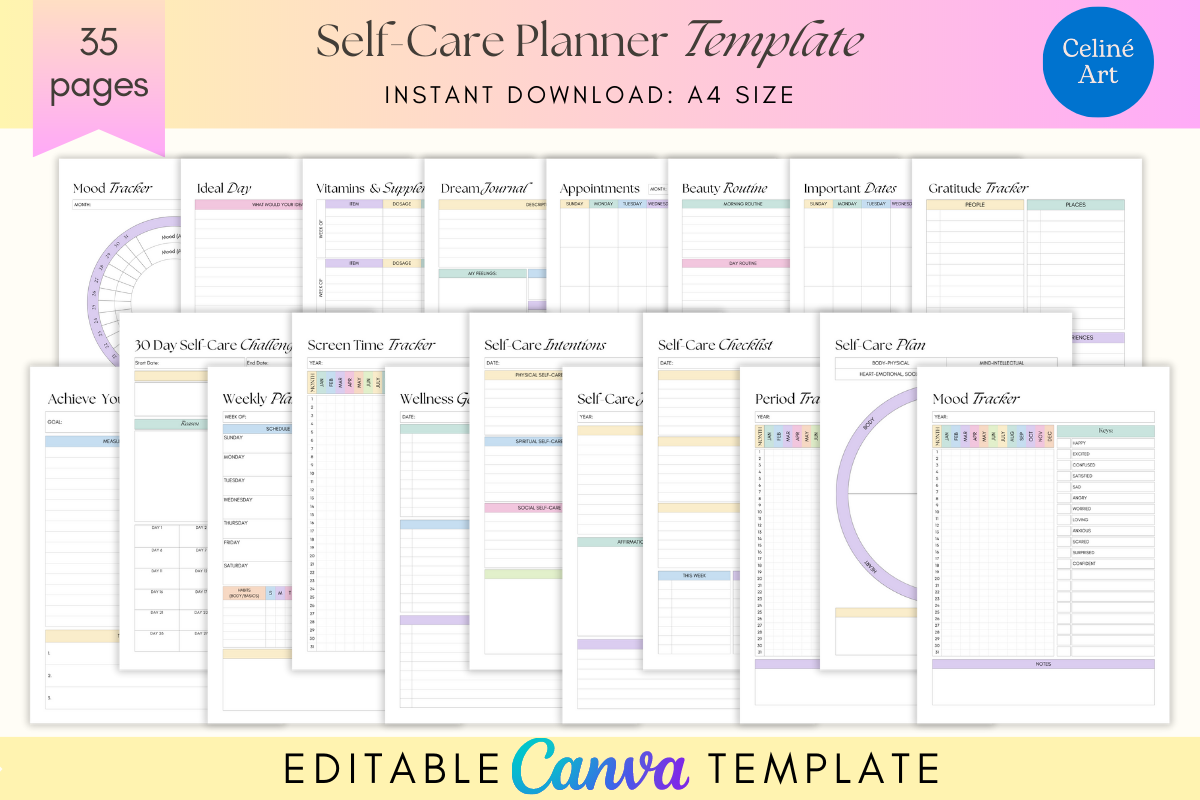
Celine Art’s Editable Self-Care Planner Template explicitly lists a screen-time tracker alongside weekly planning, priorities and reflection pages. The stated package includes a print-ready PDF and editable Canva sources in A4 size. The main preview advertises thirty-five pages, while the written description does not give a counted inventory. This is a broader collection rather than a standalone device log.
Pick it if you want a screen-use record that visually matches an existing personal journal. Edit the headings in Canva, then pair the tracker with a simple weekly planning page if that helps you identify when device use takes time from other activities. The seller’s wellness claims do not establish a medical benefit. The listing also does not confirm automated time totals or synchronization with phone settings, so plan on entering and reviewing the record yourself.
Keep the Weekly Review Simple
Review the sheet at a regular time and look for practical patterns: which days had long sessions, which activities were recorded and which entries were missed. A total is more useful when you know what it includes. Choose the categories before starting and change them only when you can explain how the old and new entries relate.
Our family planner guide can help place shared activities beside the record. If you prefer personal reflection alongside a log, compare self-care planner templates and keep only the extra pages you intend to maintain.
Which Screen Time Tracker Should You Choose?
For a single working sheet, the A4 BookWorm checklist is the smallest stated option. HandyBooks offers a repeated device-use interior with vector sources, while srempire provides a rewards-based chart. The larger BookWorm set is useful for trying several worksheet layouts, though its color-description conflict deserves a file check.
KDP Studio’s journal adds context through offline-activity pages and reflections. The teen, kids and Celine collections suit people who want the screen-time page to match a wider planner. Check paper sizes, source-file access and any preview-versus-description discrepancies before selecting the final format.