11 Useful Project Planner Templates for Milestones and Deadlines
A project planner is useful when it shows the connection between the result you want, the work still required, and the next deadline. A calendar alone may show when something is due without explaining what must happen first.
These eleven products cover printable project sheets, editable Canva layouts, book interiors, a Notion template, and a project-management spreadsheet. There is also a specialized workbook for projects involving AI. The best choice depends on whether you need a private paper overview, flexible design, or a digital record you can update across several projects.
Specifications below come from the designers’ published listings. Workflow recommendations are examples of how to organize the supplied layouts; they are not claims that we tested the paid downloads or verified their software automation.
In this guide
How to choose a project planner for your workflow
For a small personal project, start with the outcome, a short task list, milestones, and notes. For several overlapping projects, consider a format that lets you sort work by status or priority. A sophisticated dashboard is only useful if you can keep its source information current.
Editable Canva files let you tailor labels and appearance, but they do not automatically manage dependencies or remind teammates. A PDF is convenient for writing and printing. Notion and spreadsheets offer different digital workflows, with account access and file delivery details to check before purchase.
Distinguish a timeline from a task list. Write the handoffs and prerequisites that affect the next step, then assign realistic dates. A planner can make those relationships visible, but the person managing the project still needs to update them as circumstances change.
1. Printable Project Task Planner by HillTract
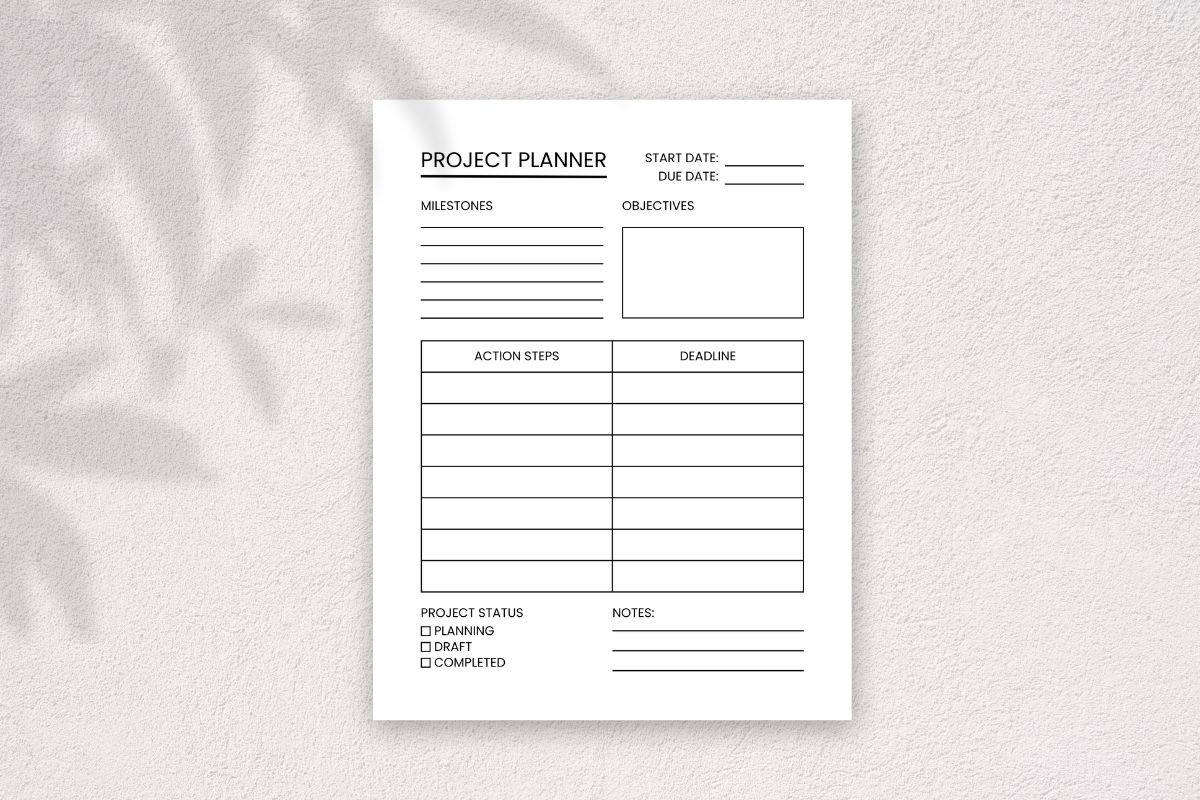
HillTract provides a Letter-size project planner with PNG, PDF, and an editable Canva template link inside a ZIP. The designer positions it for breaking a project into tasks and organizing a practical plan. It is a straightforward starting point when you want a printable page you can also customize.
Use the template for one project at a time, keeping the intended result and next actions close together. Canva editing gives you room to adapt labels to a course assignment, creative commission, or home project. Export a sample before committing to a full set of pages.
The description does not state a total page count or a detailed inventory of advanced tracking features. It mentions use with Happy Planners, but confirm dimensions and margins for your specific binder rather than assuming a direct fit. Choose it for simple task organization rather than automated project management.
2. Project Notes and Timeline Bundle by PlannersByBee
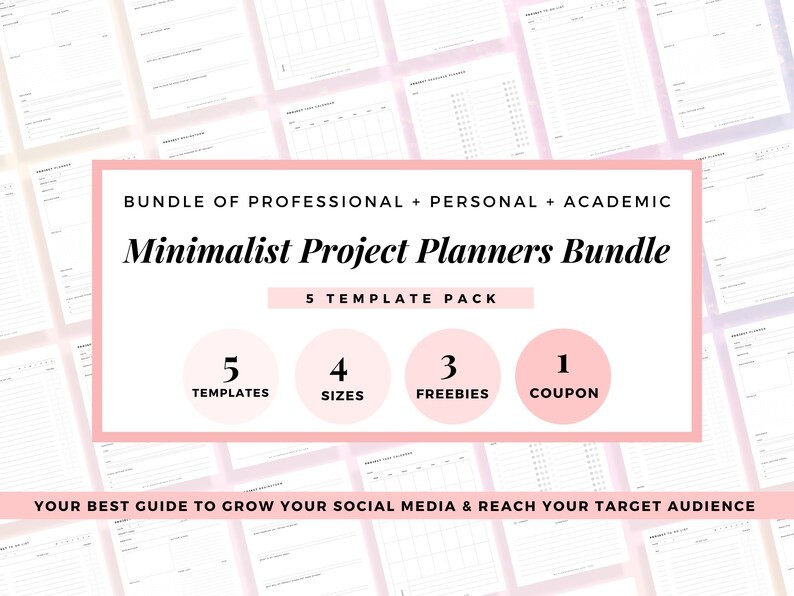
PlannersByBee describes a project-management template bundle for work, business, student, academic, and personal projects. The listing names project notes, a Gantt timeline, and productivity tracking, with a clean, light-on-ink approach. It offers a broader visual framework than a single to-do sheet.
The timeline can be useful for seeing the order of major stages, while project notes keep decisions and reminders near the plan. Use it for a project where sequencing matters, such as research, a client deliverable, or a small event. Keep task descriptions specific enough to show what completion means.
The description does not clearly specify paper sizes, file formats, or the exact number of templates. Confirm those details and inspect the preview before buying, especially if you need editable pages or a particular binder size. The stated low-ink approach is appealing, but practical fit matters more than the bundle’s promotional claims.
3. Project Management Spreadsheet by ThePlannersDelight
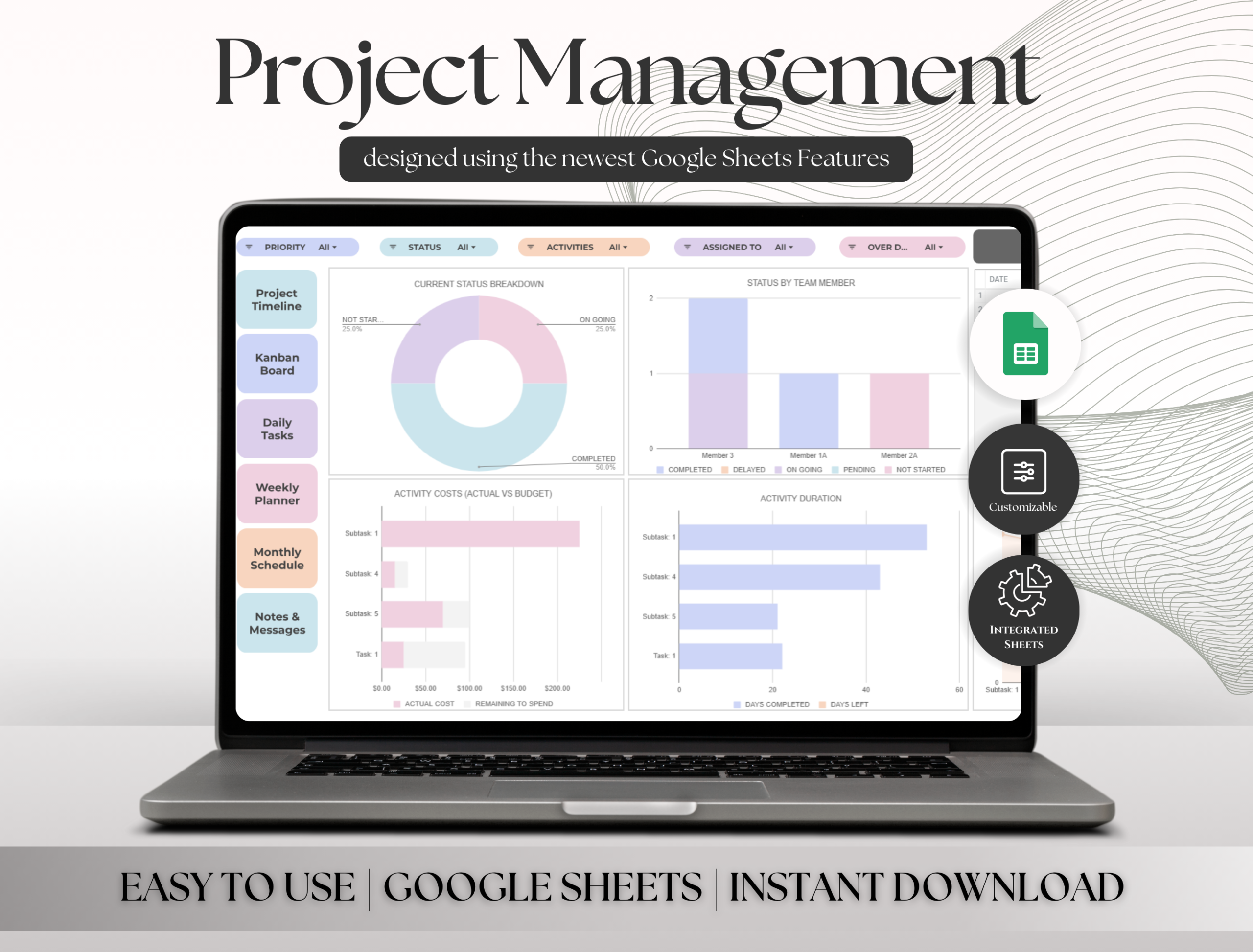
This spreadsheet lists nine tabs, including setup, dashboard, timeline, Kanban, notes, and daily, weekly, and monthly planning. The described inputs cover project or task names, members, status, priority, and filters. A PDF containing an access link is the stated delivery method.
The proposed workflow connects timeline entries with status views and a dashboard, which could be useful for several concurrent projects. Start with a small test project and check how task changes flow between views before relying on it for real deadlines. Keep the source data consistent so summaries remain meaningful.
The listing says a free Google account provides access, but also refers to macro buttons and slicers without clearly naming every software requirement. Clarify the supported platform and any automation limitations with the seller. The dashboard behavior is seller-described, not independently tested here; do not assume identical functionality in Excel and Google Sheets.
4. Editable Canva Project Planner by UltimateTemplate
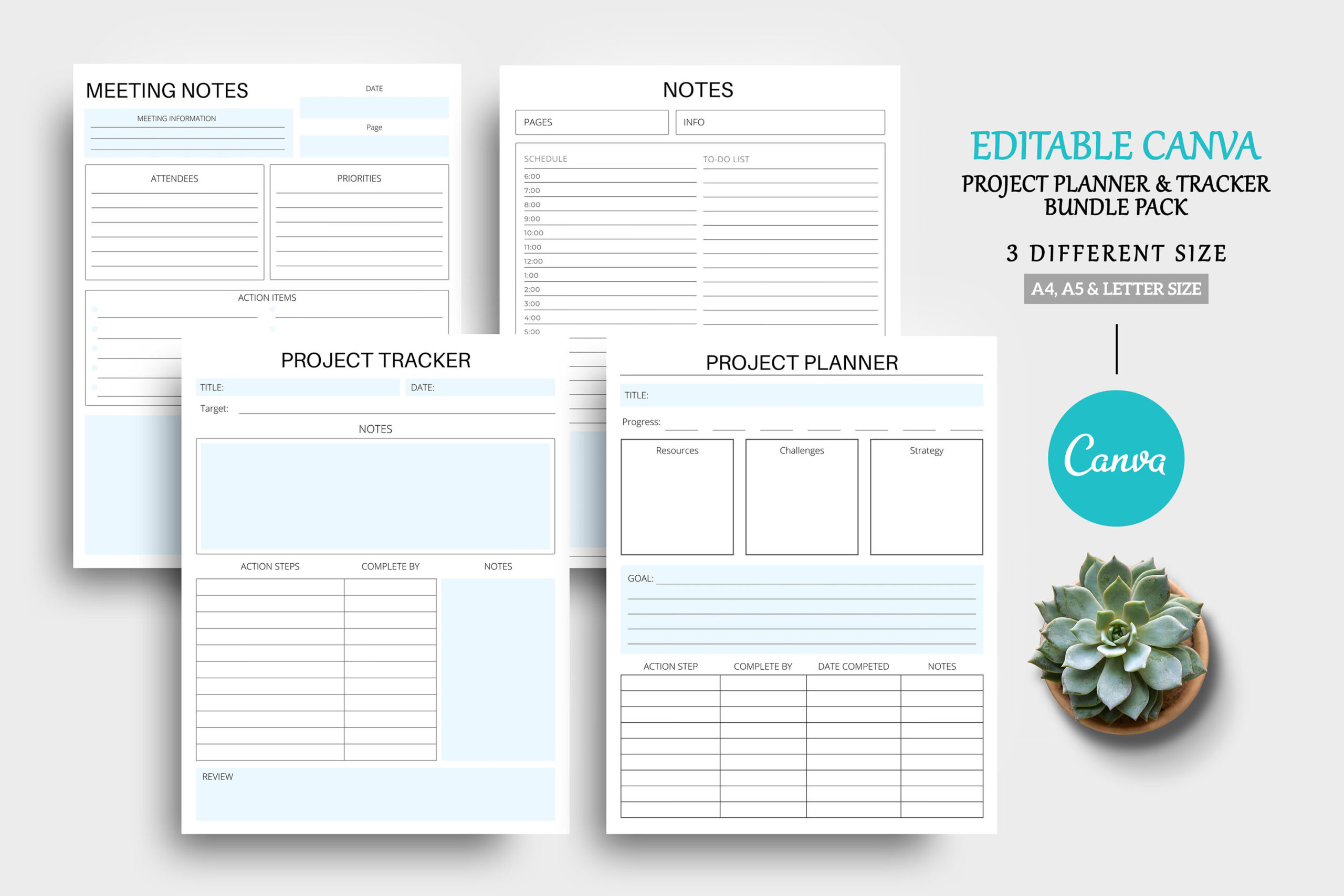
UltimateTemplate offers editable Canva project layouts in A4, A5, and Letter, with PDF, JPEG, and a Canva link. The description includes project planning, timeline tracking, meeting minutes, and notes. It is a flexible option when your team or personal workflow uses labels that standard planners do not match.
Customize the template around the decisions you need to record: project stages, responsibilities, and the next agreed action after a meeting. The meeting-minutes pages are particularly useful if information otherwise gets scattered between a planner and separate notes.
Canva handles layout editing rather than live project automation. Changes to deadlines or responsibilities still need to be maintained manually. The listing does not specify an exact page count, so use the preview to judge whether the included layouts are enough for your project before investing time in customization.
5. Editable Group Project Interior by Fantasy Butterfly
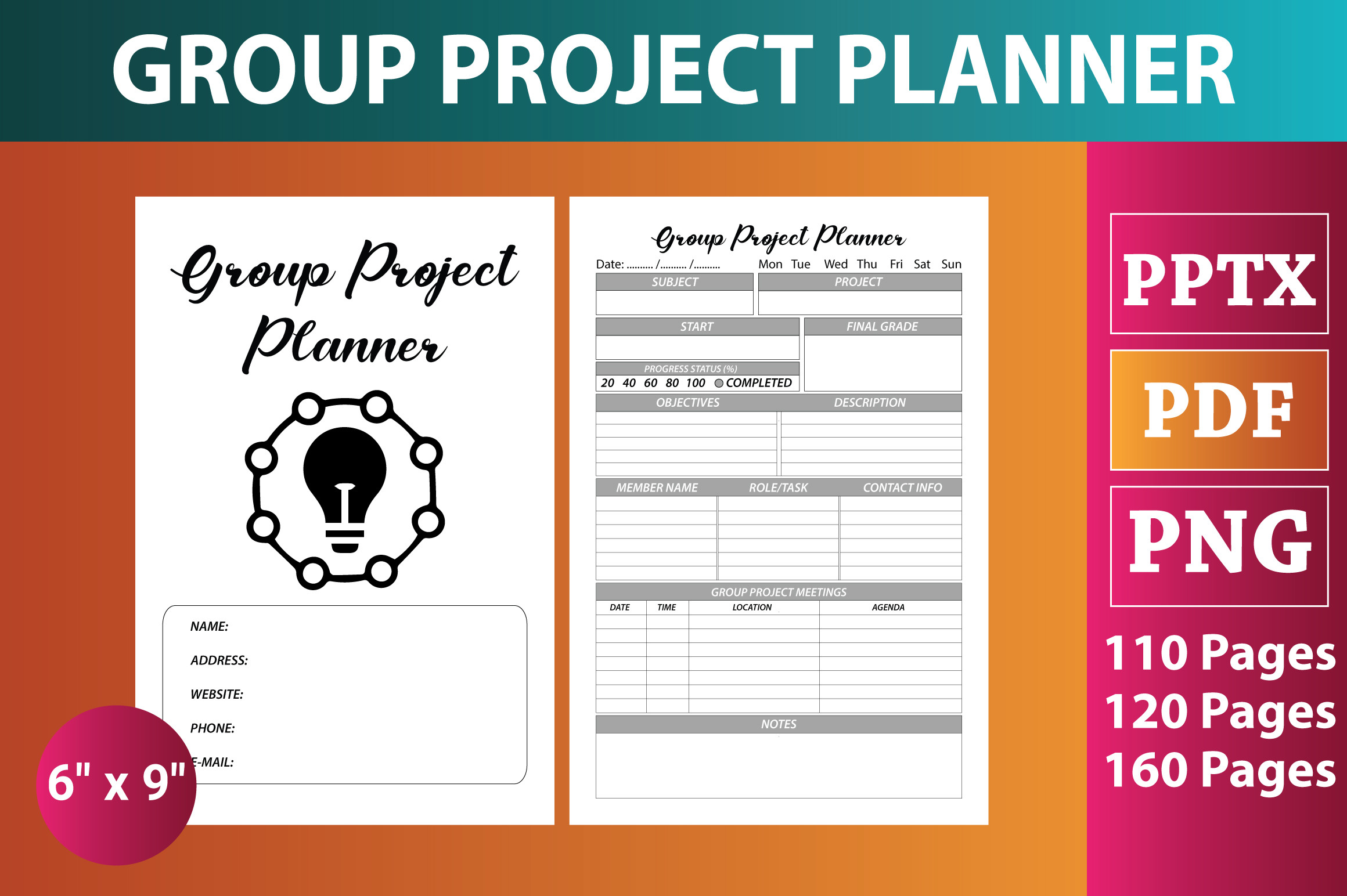
This group-project interior comes in 6 × 9 inches, with PDF, PNG, and editable PowerPoint files. The designer lists versions containing 110, 120, and 160 pages and explicitly says the cover is not included. It is a book-style option rather than a small printable worksheet set.
The editable PowerPoint source may be useful if you want to adapt a group planner for a specific assignment or recurring collaboration. Check the preview and choose the page-count version that matches the intended notebook, then keep the structure consistent across copies.
The description does not detail every internal field or confirm live collaboration features. A group-project title does not mean teammates can update the same file simultaneously. The compact size also limits writing room for complex plans, so inspect the layout carefully before choosing it for a large project.
6. Project Planner for Print and Tablets by Plamarplanners
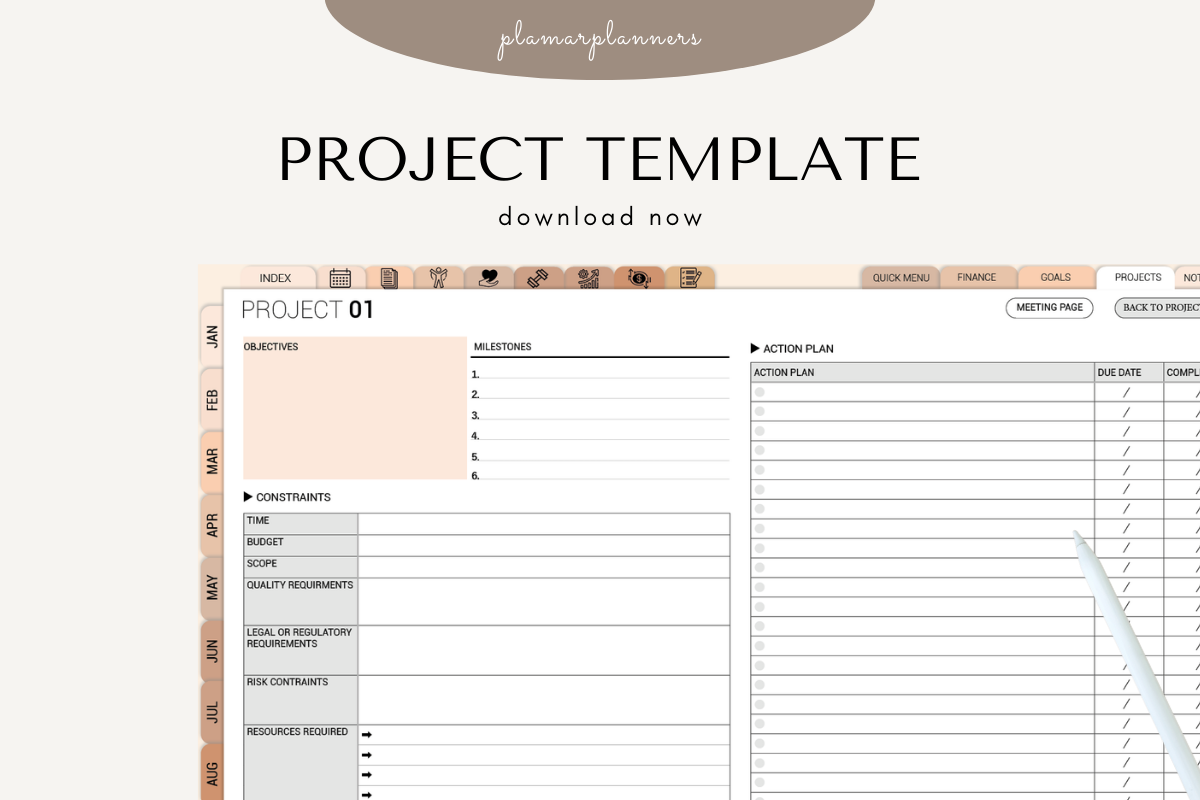
Plamar clearly lists a project overview, task breakdown, milestones and deadlines, resources and budget, brainstorming, progress tracking, and priority actions. Printable PDFs are available in A4 and US Letter, and a tablet-friendly version is also described. It covers the basic decisions involved in taking a project from idea to completion.
For a creative commission, start with the overview and milestones, then use the resource page to record what is needed before work begins. Keep the priority list for the next few actions rather than the entire backlog. The separate progress page can support a quick weekly review.
GoodNotes, Notability, and Xodo use are advertised, but the description does not confirm hyperlinks or reminders. A tablet-friendly file remains a manually maintained planning surface unless additional features are specified. This is a strong all-round option for readers who want clearly described project sections.
7. Minimal Canva Project Planner by Templates by amleyy
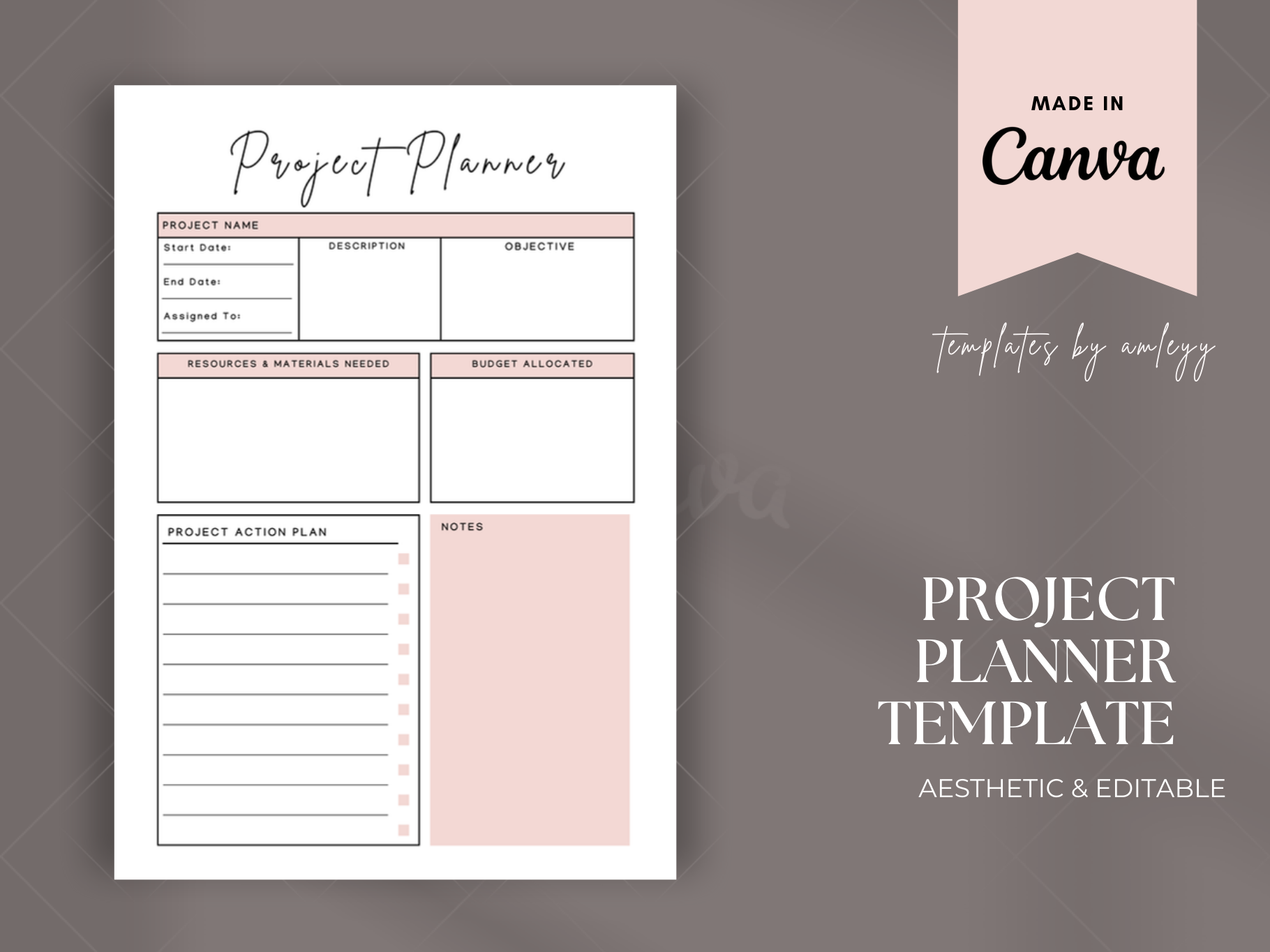
This Canva template includes project goals, timelines, milestones, task assignments, and progress tracking. Delivery is through a PDF with a Canva access link, and the designer says a free Canva account is required. Colors, fonts, text, and other design elements can be customized.
The minimal approach suits a project overview you want to revisit regularly. Use the goal field to define the finished result, milestones to mark meaningful checkpoints, and task assignments to make responsibility visible. Keep the visual design simple enough that updates remain easy.
Page dimensions and total page count are not clearly stated in the description, so confirm them if printing is central to your plan. The template can support assigned tasks, but the listing does not establish live team synchronization or automated notifications. Treat it as an editable planning layout.
8. The Progress Project Planner by Mustafiz
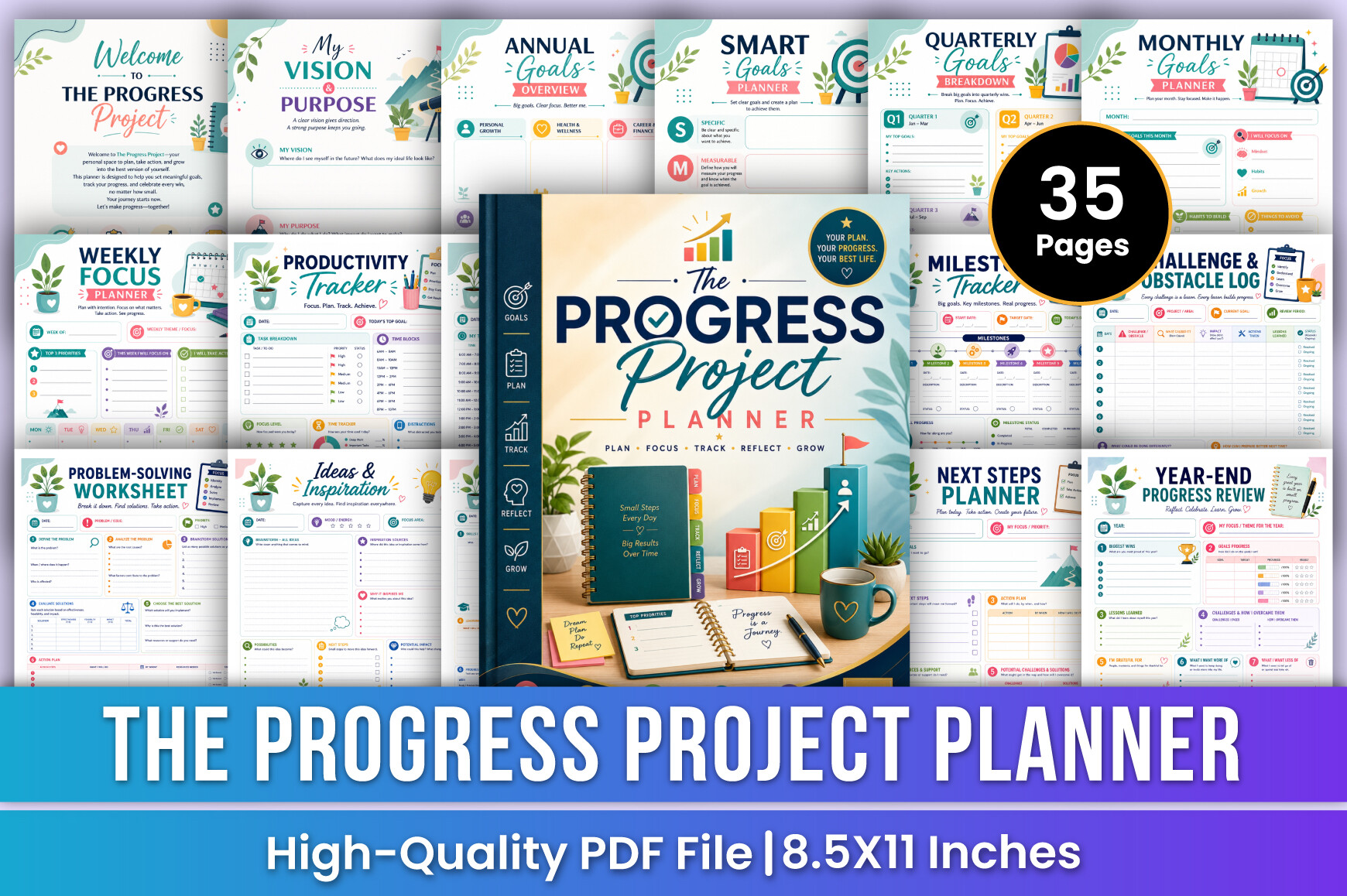
Mustafiz’s 35-page planner includes project planning, measurable goals, priorities, progress tracking, action steps, timelines, brainstorming, reviews, and meeting notes. The files are listed as print-ready PDF and JPG in 8.5 × 11 inches, CMYK, with no bleed. It is a fuller workbook for organizing a project across several stages.
The review section is a useful distinction: it gives you space to assess what worked after a milestone or completed project. For a recurring client workflow, use that review to improve the next brief, estimate, or handoff rather than simply archiving the completed pages.
The listing does not confirm editable source files, so expect ready-made layouts. Thirty-five pages describes the interior, not a promised duration of project coverage. Print the overview, task, and review sections first; add the other pages when the project actually needs them.
9. Notion Project Planner by MinTora
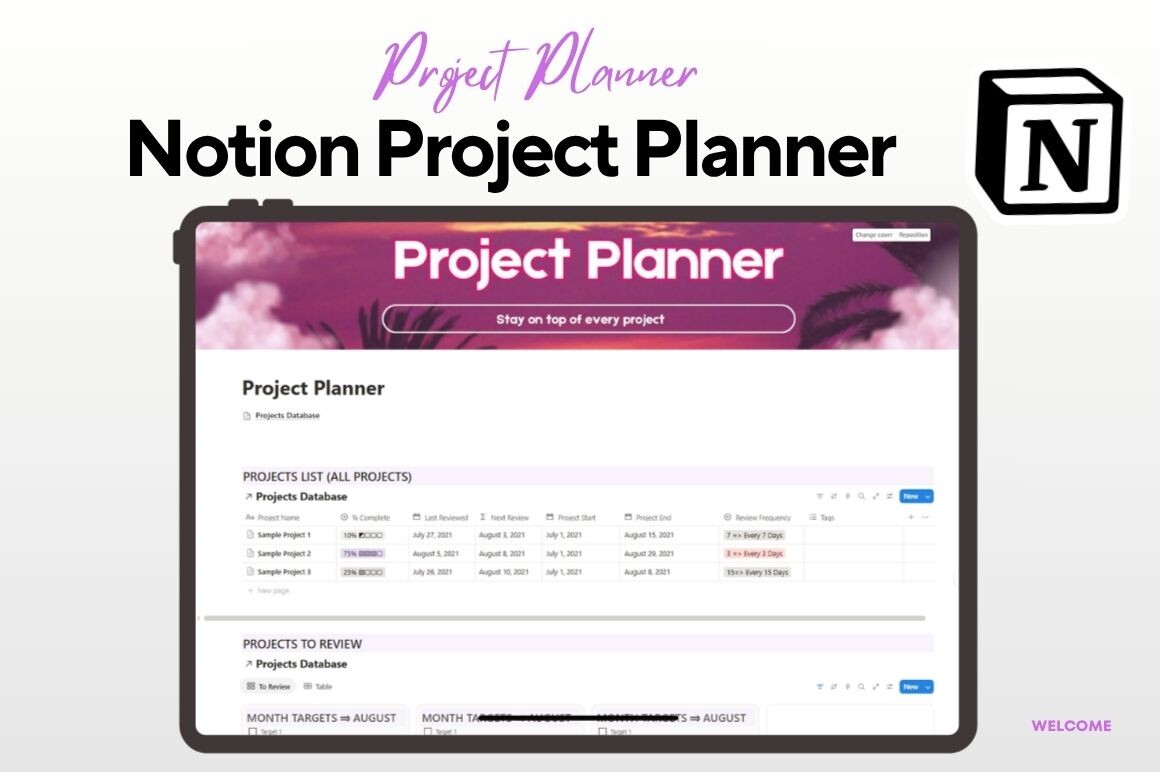
MinTora describes a Notion template for managing multiple projects, setting deadlines, organizing tasks by status, priority, or category, and reviewing completed work. It is the platform-specific option in this selection, intended for readers who want to maintain a digital project record rather than a paper binder.
If you already use Notion, this approach may help keep project information together instead of separating plans from task notes. Start with one active project and use consistent status labels so the system remains understandable as more work is added.
The brief listing does not specify the exact delivery file, database views, integrations, or automated reminders. Confirm those details and account requirements before purchase if they affect your workflow. Do not assume Gantt charts or advanced dependencies simply because the template is for project management.
10. Compact Project Management Interior by SOUDOU shop
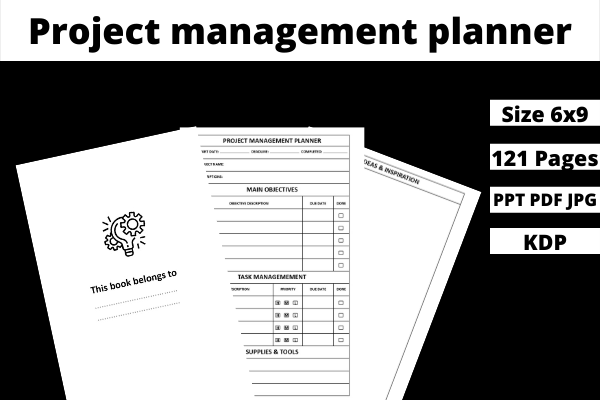
This English-language interior is specified as 121 pages in 6 × 9 inches, with no bleed. The designer lists PDF, JPG, and PowerPoint files and positions it for personal or professional project planning. It is a compact notebook-style alternative to large desk sheets.
The PowerPoint format may be useful for adapting the interior before printing, while the PDF provides a ready layout to review. Use the preview to decide whether the writing areas suit short project updates or longer task descriptions. A consistent notebook can be helpful if you prefer keeping related notes in one place.
The product description does not clearly enumerate its project sections, so check the preview rather than assuming specific timelines or budget trackers. The stated page count offers capacity, but does not by itself establish how varied the layouts are. Review any modified export before binding.
11. AI-Assisted Project Workbook by KDP Lab
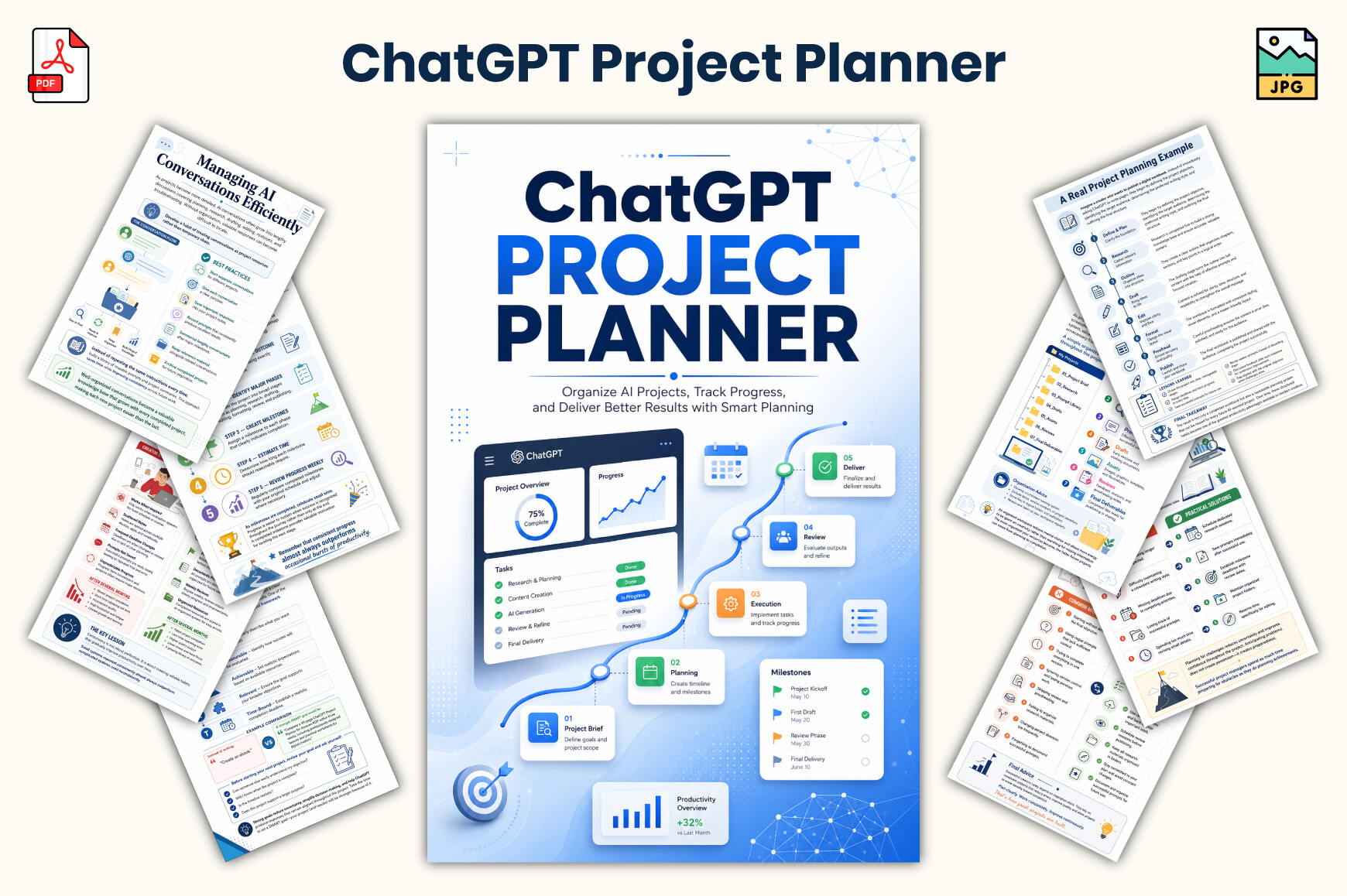
This 29-page workbook focuses on projects that use ChatGPT as part of the workflow. The listed sections include goals, prompt planning, timelines, milestones, risks, reviews, prompt-quality checks, a prompt library, and a completion checklist. PDF and JPG files are specified in 6 × 9 inches.
It could suit an ebook, research outline, or digital-product project where keeping track of prompts and decisions matters. Use the prompt-planning pages to record the task and expected output, then put review and verification steps beside the milestones. That makes the human checks visible before delivery.
The workbook is a planning resource, not software or an integration with ChatGPT. It does not verify AI-generated information or replace checking rights, facts, and quality yourself. The compact page size suits concise notes; larger projects may need separate space for source material and detailed drafts.
Set up the project before filling the task pages
Write a clear finish line: what will exist when the project is complete, who will use it, and what counts as acceptance. Then list the major stages and identify what must happen before the next stage can begin. For a website redesign, that might mean agreeing the scope before drafting layouts.
Turn stages into actions small enough to complete or review. Assign an owner where another person is involved, and put the first action into the schedule you use every day. Our hourly daily planner templates can support the execution side without making your project overview carry every appointment.
Keep progress visible without excessive administration
Review the project at a predictable interval. Check completed work, blocked tasks, approaching deadlines, and decisions waiting for input. Update the next milestone before spending time making the planner look polished. A short accurate record is more useful than a detailed page that is a week out of date.
If the project belongs to a broader business plan, our business planner guide can help connect it with wider priorities. Keep the project pages focused on scope, resources, tasks, and delivery rather than copying the entire business strategy into every section.
Which project planner should you choose?
Choose Plamar for clearly described project pages covering tasks, milestones, resources, budgets, and progress. Choose UltimateTemplate for editable Canva layouts with meeting minutes. The Progress Project Planner offers a larger printable workbook with project reviews, while the Notion option suits readers already comfortable with that platform.
The spreadsheet may be appealing for timelines, dashboards, and status views, but its listing mixes Google account access with macro-related language; clarify software requirements before purchase. For a straightforward paper routine, start with a small template set and add only the pages that help you make the next decision.



One Comment