8 Practical Pinterest Planner Templates for a Clear Content Workflow
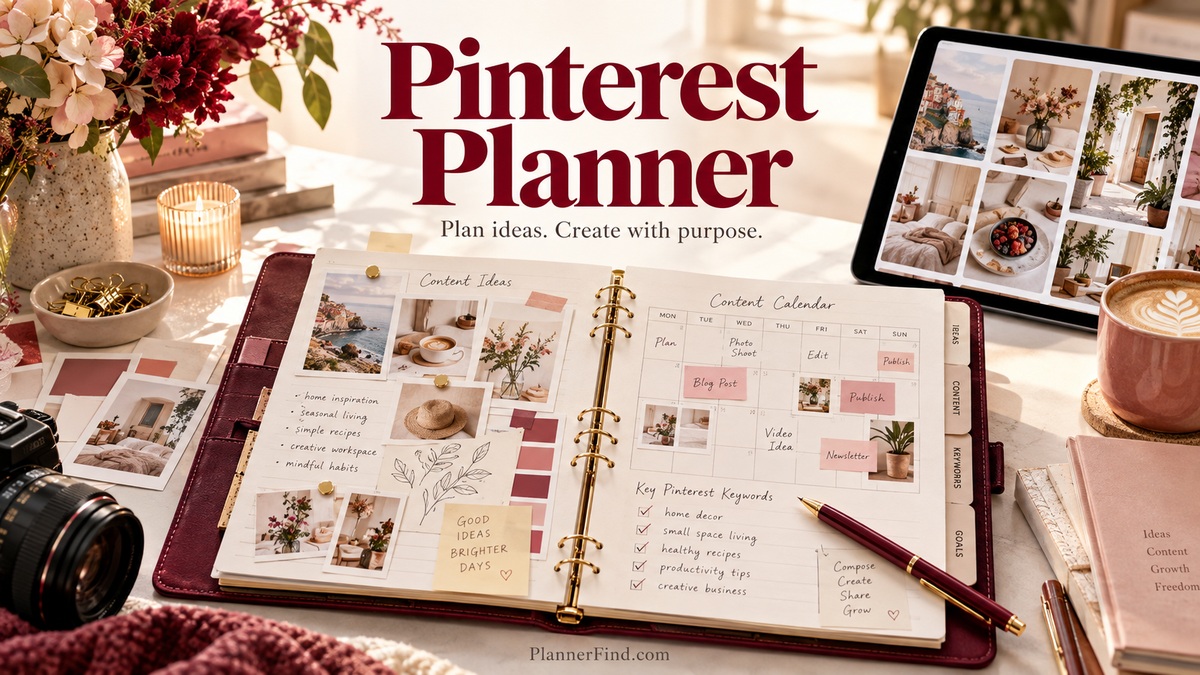
A Pinterest planner helps turn a folder of ideas into a workable content routine. The useful part is the connection between a reader’s question, a destination page, a pin concept, and a date you can realistically meet. A pretty calendar alone will not make those decisions for you.
These eight Creative Fabrica products cover different parts of that process: editable research worksheets, compact logbooks, an author-focused campaign workbook, and a broader marketing bundle with Pinterest pages. The comparisons below use the designers’ published file and feature descriptions. They do not assume live analytics, automatic scheduling, or results that a printable template cannot guarantee.
Start with the tool that addresses your current bottleneck. If you already have plenty of designs but no clear topics, choose research and idea pages. If production gets lost between drafts and publication, a simple repeated log may be enough.
In this guide
How to choose a Pinterest planner
Choose an editable Canva template if you need to change the layout frequently. A PDF is easier to print consistently, while Illustrator, InDesign, and PowerPoint source files require suitable software and more editing confidence. Check the delivered-file list rather than assuming every mention of Canva includes a template link.
Look for a sequence you can maintain: audience, keywords, destination, headline, visual concept, production date, and later review. Not every product contains dedicated fields for all of these. Inspect the preview and decide which information you will record in your own notes.
Keep platform terminology in perspective. Some older worksheets use labels from previous Pinterest workflows. They can still provide writing space, but a worksheet heading is not evidence that a feature or tactic is available today. A planner should organize your decisions, not substitute for checking your actual account.
1. Editable Pinterest Planner Canva Template
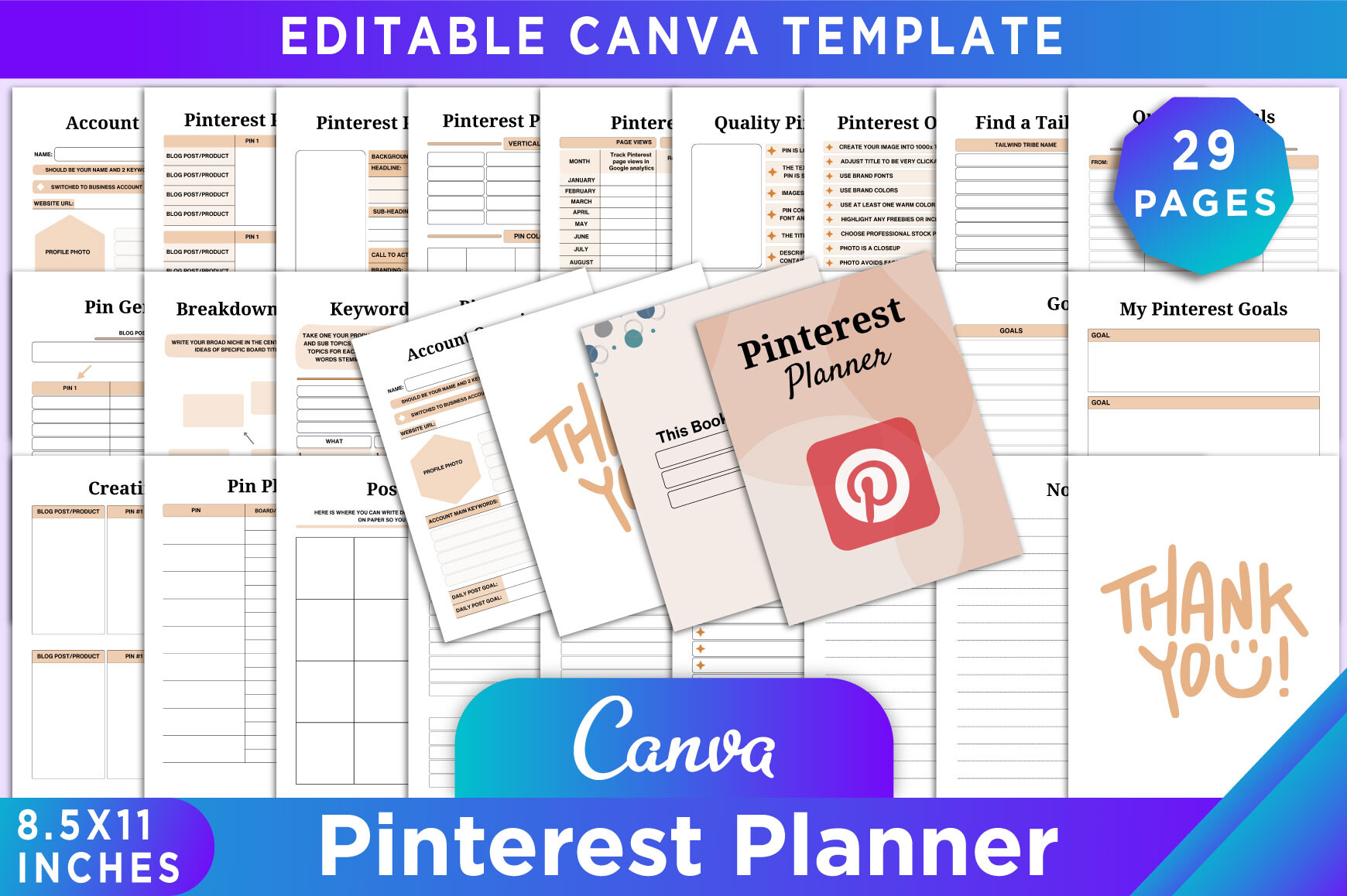
KDP GRAVITY’s Pinterest planner is the most adaptable starting point here for a creator who needs to connect research, production, and review. The listing identifies 29 Canva templates in US Letter size, with PDF, JPEG, and PNG exports. Its sections include account overview, keyword research, audience planning, pin ideas, board planning, goals, and daily, weekly, and monthly tasks.
Use the keyword and audience pages before filling a posting schedule. For example, choose one article, write several relevant search phrases, and plan different visual treatments around the same useful destination. Then use the statistics worksheet to record results manually. The value is having your reasoning beside your calendar, rather than accumulating disconnected pin ideas.
The editable Canva link makes this a good choice if you want to change colors, headings, or writing space. Copy the template into your own Canva account before editing, as the seller requests. Some worksheet labels refer to older platform terminology, so adapt those headings to your current workflow. This is a planning document, not a live analytics connection or an automatic publishing tool.
2. Pinterest and Social Media Planner by Fayne
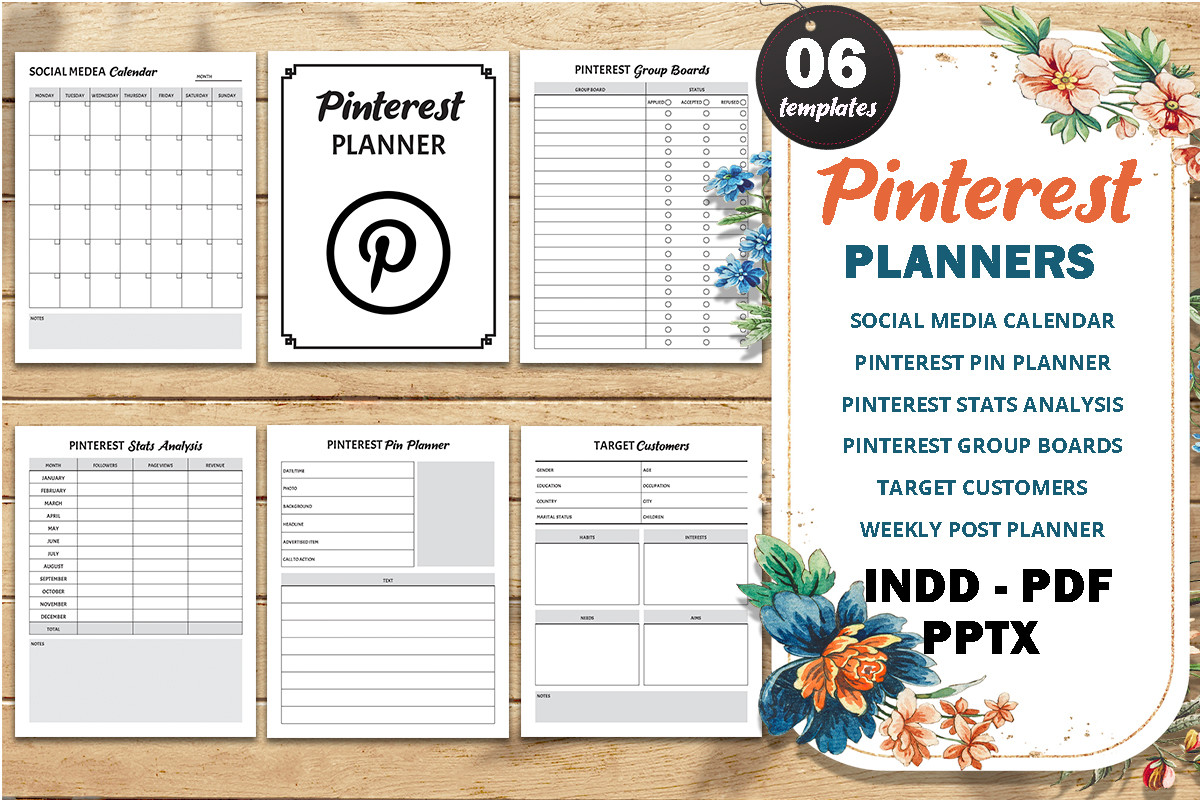
Fayne’s planner suits someone who wants editable source files without committing exclusively to Canva. The advertised package contains a US Letter PDF, an InDesign INDD file, and a PowerPoint PPTX file. Listed sections include a social media calendar, pin planner, statistics analysis, target-customer planning, weekly posts, and group-board planning.
A practical way to use it is to define the reader and destination page first, then batch the week’s pin concepts on one worksheet. Put the actual production date and planned posting date in your own notes so you can distinguish unfinished designs from ready assets. Its broader social media calendar can also help coordinate a blog announcement with related Pinterest content.
The advantage is format choice: print the PDF for a desk binder or use the supplied source format if you already have the relevant software. The limitation is that application access is separate, and the listing does not establish a precise page count. Treat older group-board wording as an optional worksheet category, rather than evidence that a particular platform tactic will work today.
3. Pinterest Pin Ideas by KDPMart
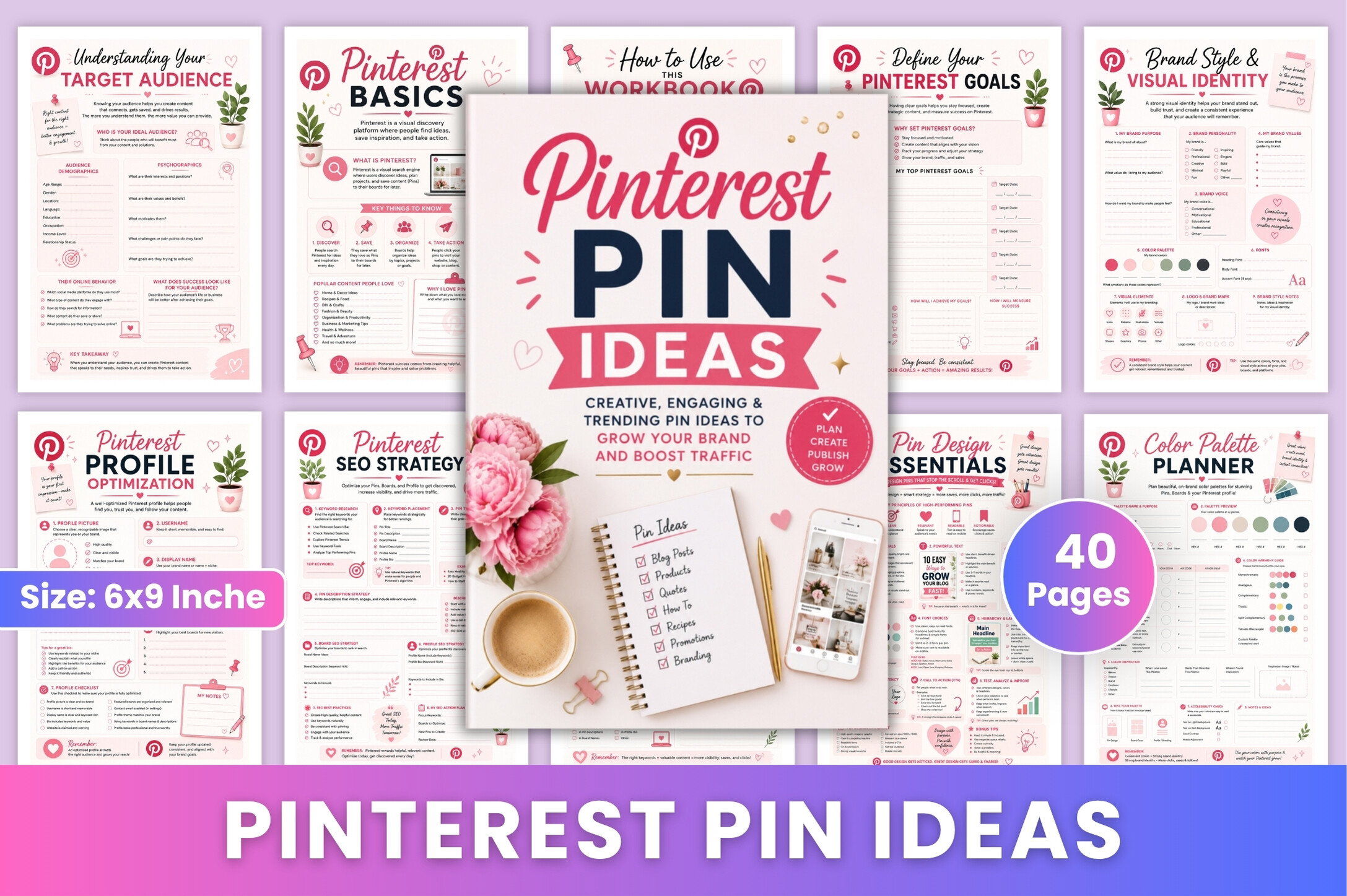
KDPMart’s Pinterest Pin Ideas is a compact planning workbook for turning a topic into a repeatable content pipeline. The designer lists 40 pages in 6 × 9-inch PDF format, without bleed, at 300 DPI. Its advertised sections cover audience research, goals, branding, keywords, headlines, descriptions, calls to action, boards, calendars, and results tracking.
This is especially useful when your bottleneck is deciding what to create. Start with one helpful article and draft three distinct headline angles, each matched to a relevant board and a clear next action. Use the tracker to record the publication date and later observations. That makes the next batch a considered revision instead of another collection of unrelated graphics.
The small format is easier to carry than a large binder, but offers less room for lengthy copy drafts. The product description also includes some legacy pin-format terminology; use the worksheets for the formats currently available to your account. Its statistics pages are manual records. They do not retrieve Pinterest data, predict reach, or provide an automatic scheduler.
4. KDP Pinterest Growth and Promotion Planner
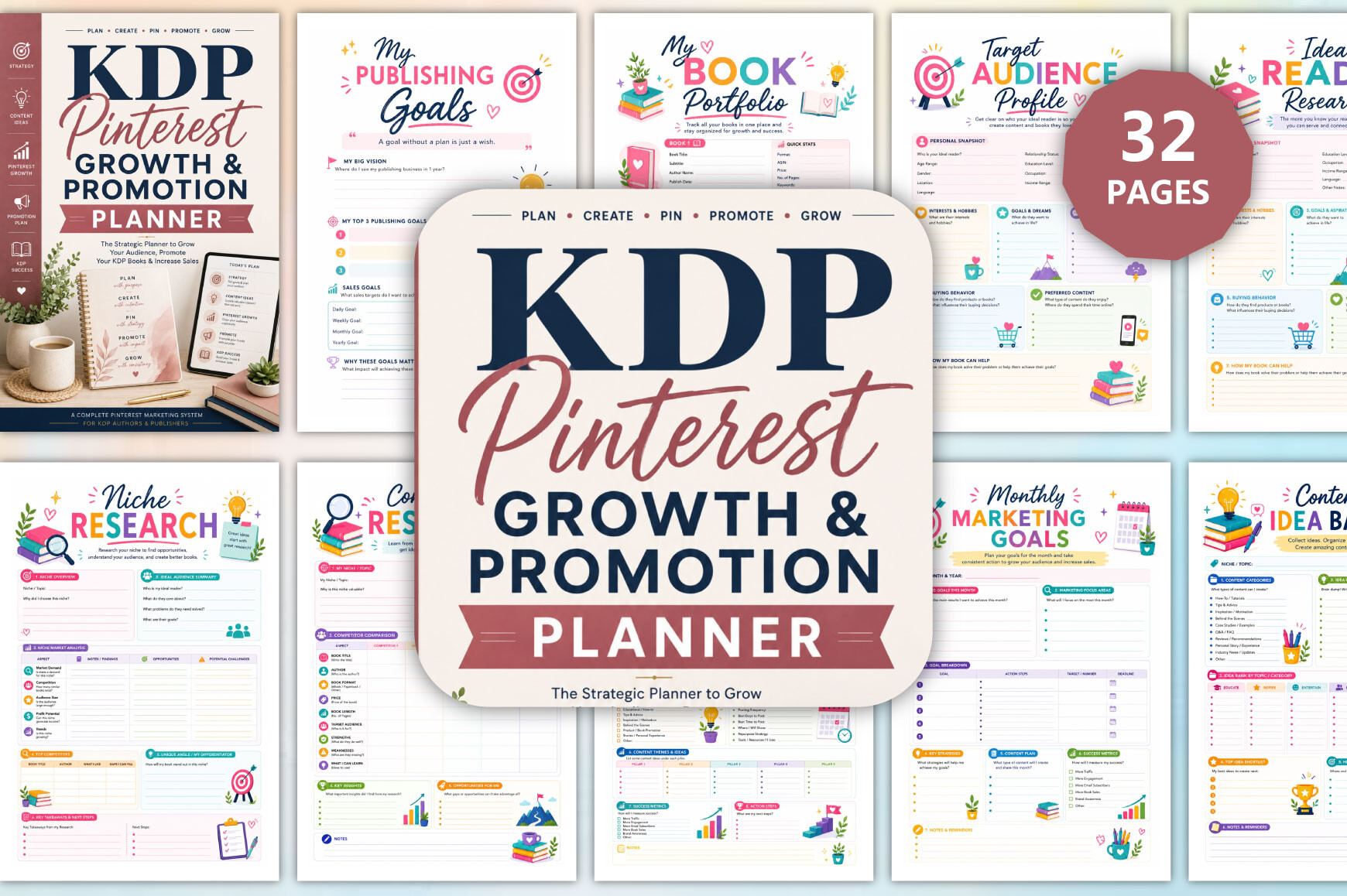
munjixpro’s workbook is the most specialized option for authors promoting books rather than general lifestyle content. The listing specifies 32 pages, 6 × 9 inches, PDF and JPG files, no bleed, and 300 DPI. Its sections connect a book portfolio and ideal reader with keyword research, a content bank, pin headlines, descriptions, weekly plans, launches, and campaign results.
For a practical book launch, separate educational pin ideas from direct product announcements. An activity-book creator could plan a useful sample activity, a theme-focused post, and a book preview, each with its own destination. Use the campaign worksheets to record what went live and what you observed later, keeping traffic notes separate from actual book sales.
The benefit is a workflow built around a concrete product, which makes the goal pages less abstract. The limitation is its narrow audience: many book-specific sections will be unnecessary for a blogger without a publishing business. Despite the word “growth” in the name, this is a printable organizer. It cannot guarantee clicks, sales, or audience growth, and does not connect directly to an analytics account.
5. 2027–2028 Pinterest Post Planner
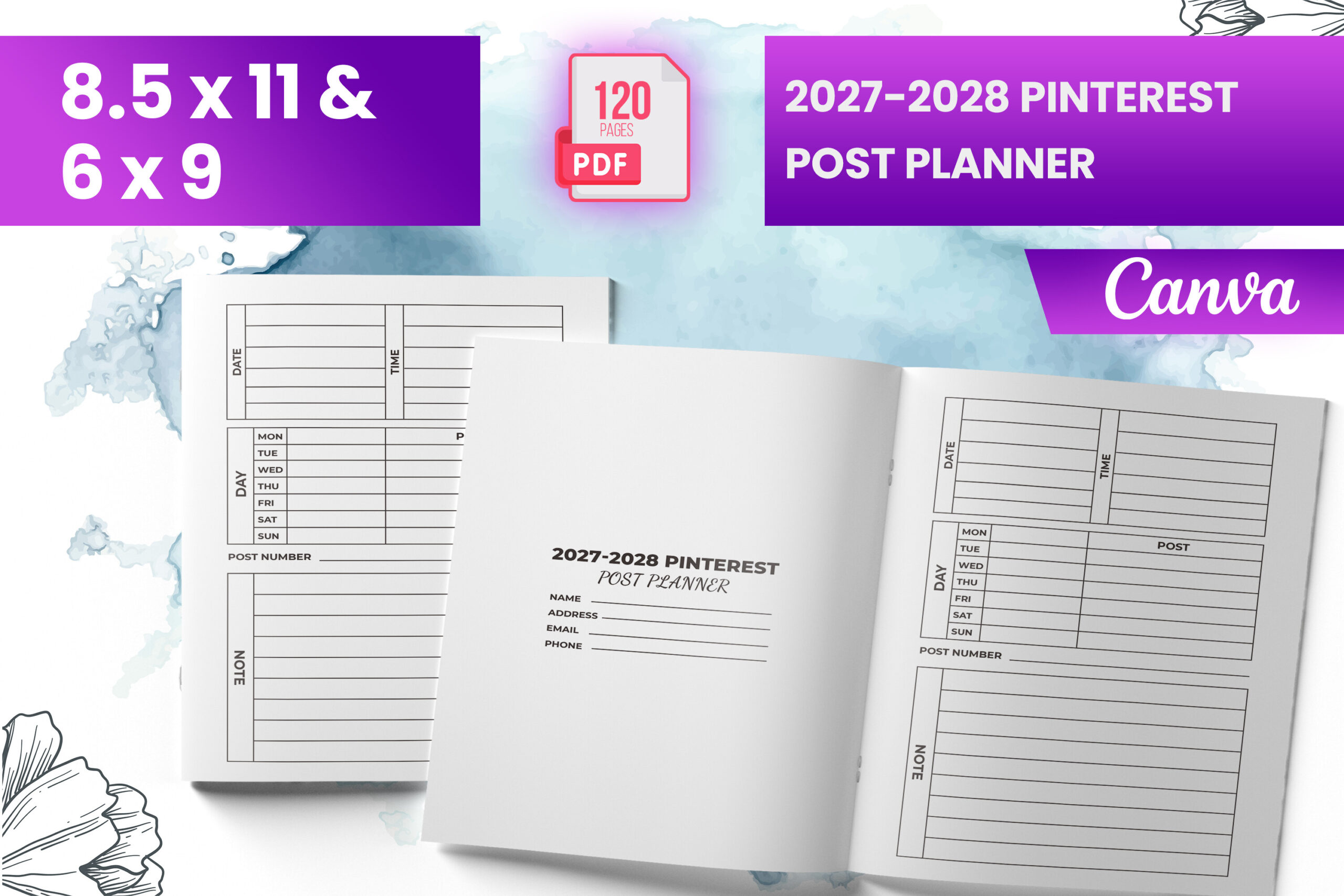
Boss Designer’s 2027–2028 Pinterest Post Planner is an option for someone organizing materials around the next planning period. The listing describes a 120-page interior supplied in PDF, PNG, and JPG, with both 6 × 9-inch and 8.5 × 11-inch sizes and a bleed area. Those two formats give you a choice between portability and a larger writing surface.
Use the larger version when a pin plan needs space for headline drafts, image notes, and destination checks. The smaller version makes more sense as a lightweight record of ideas and production tasks. Before committing to a long printing run, inspect the preview and print a short sample to see whether the repeated layout matches the information you actually record.
The 2027–2028 label is useful for identifying the intended edition, but does not by itself prove that every day across both years has a dedicated dated page. The delivered-file list also does not clearly establish an editable Canva link, despite Canva-related wording elsewhere in the description. Choose it for the stated files and sizes, and confirm date coverage and editability if those features are essential.
6. Compact Pinterest Post Planner by HASNAB
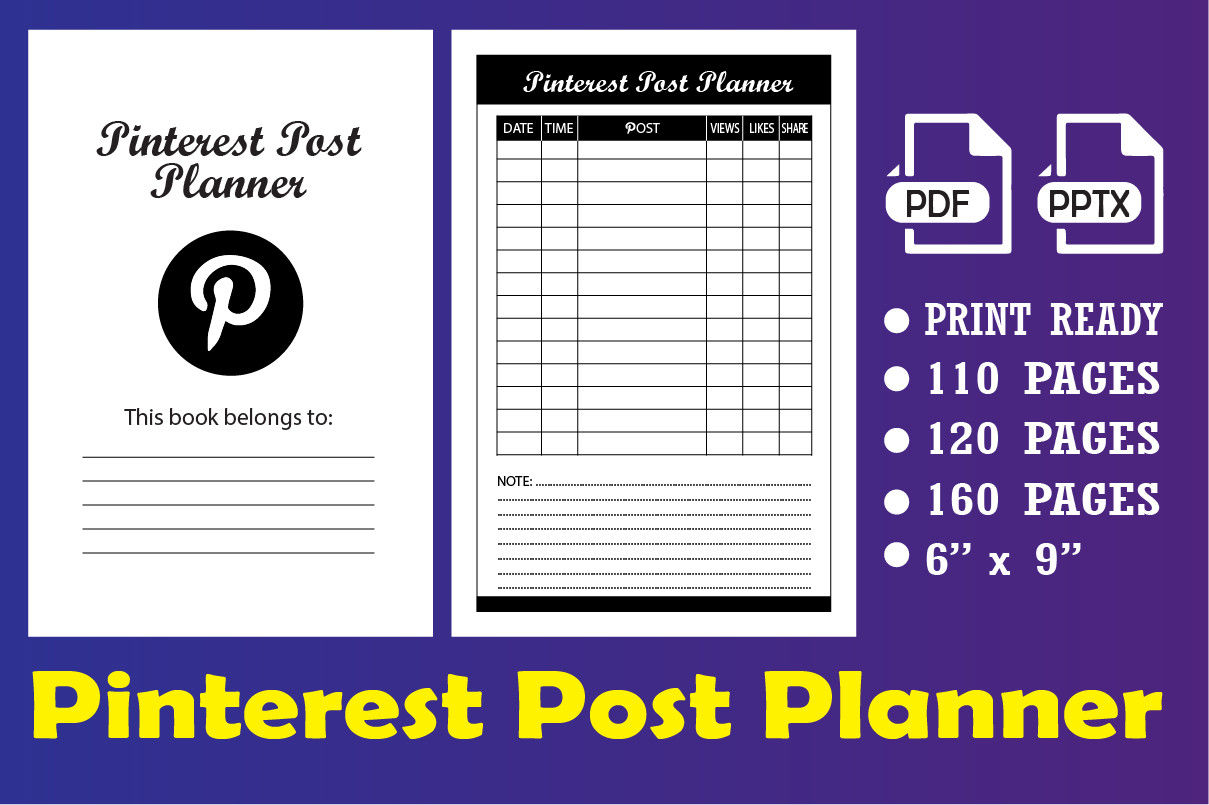
HASNAB’s Pinterest Post Planner offers a compact 6 × 9-inch format with PDF and PPTX files. The seller lists versions with 110, 120, and 160 pages. This is a useful candidate when you want a longer-running notebook of post plans rather than a short strategic workbook, especially if you prefer keeping all your planning records together.
Give each planned asset a simple identifier in your own notes, then record the topic, destination article, and completion stage consistently. That small habit makes a notebook easier to compare with the files in your design folder. If you use the PPTX version, check a sample layout in your presentation software before changing text or exporting pages for printing.
The main strength is the combination of compact size and multiple page-count options. The limitation is that the listing does not provide a detailed inventory of every internal field, so the preview matters more than the headline number. Do not assume that the longest version contains more kinds of worksheets. More repeated pages can extend a logbook without adding research, analytics, or scheduling features.
7. Pinterest Post Planner Journal Log Book
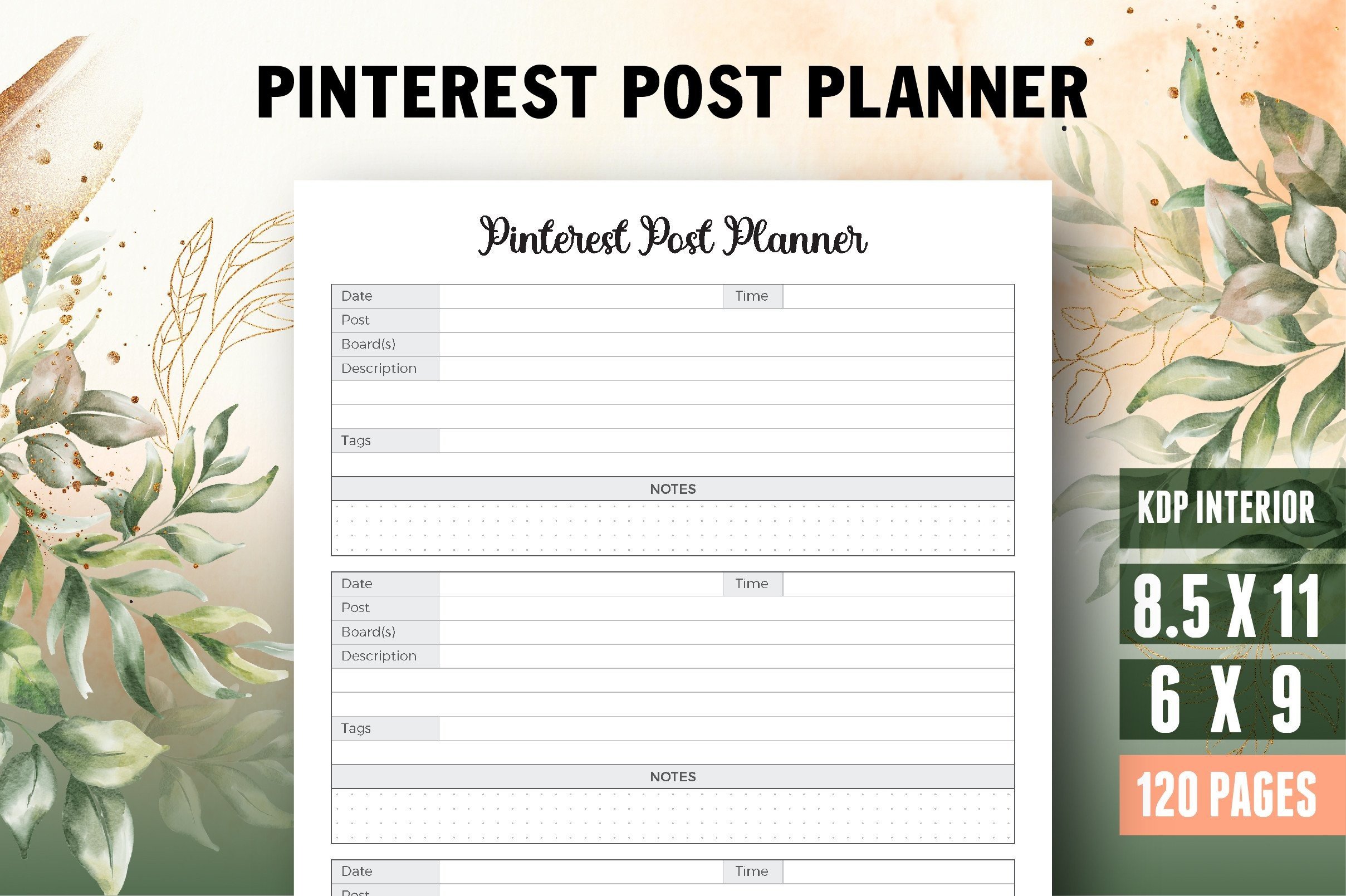
Vector Cafe’s Pinterest Post Planner Journal Log Book is a print-oriented alternative for people who want an editable Illustrator source. The advertised package contains a 120-page interior, US Letter and 6 × 9-inch sizes, PDF, AI, and JPEG files, and 300-DPI output. The seller describes the AI source as editable and specifies a bleed area.
Choose the Letter version if several people will review the same planning notes, or the smaller version if you want to carry the log between workspaces. A useful routine is to review completed plans once a week and add a short note about what should change next time. Consistent records are more valuable than filling every available page immediately.
This option’s strength is its source-file flexibility for someone already comfortable with Illustrator. Its limitation is a sparse description of the actual worksheet fields. Examine the product preview before expecting dedicated keyword, board, or analytics sections. The AI file here means an Adobe Illustrator document, not an artificial-intelligence writing or design service; software access is separate from the planner files.
8. Social Media Marketing Bundle with Pinterest Worksheets
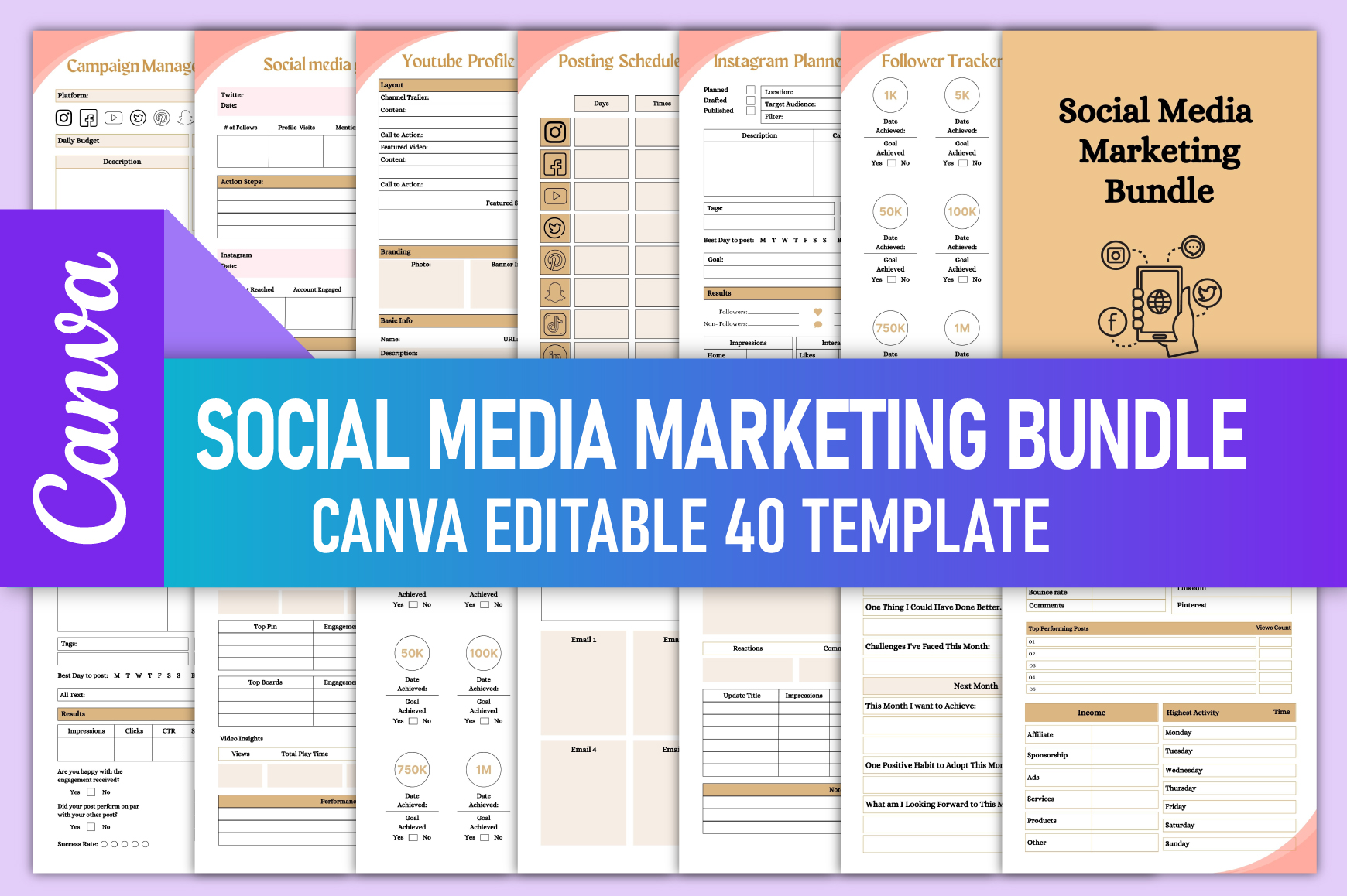
This editable Canva bundle is the broadest option in the selection. The listing specifies 40 US Letter pages without bleed, a Canva link, and print-ready PDF, PNG, and JPG files. Among its many cross-channel sections are a Pinterest Boards Planner and Pinterest Analytics, alongside posting schedules, brand fundamentals, campaign management, goals, and monthly assessment.
It makes sense for a creator who wants Pinterest to support a wider campaign. Start by selecting only the board, analytics, campaign, and brand pages that matter to your project. Use those beside a content planner to connect a destination article, newsletter, and pin batch without trying to maintain every worksheet in the bundle.
The advantage is editable coordination across several channels. The limitation is that much of the package concerns platforms other than Pinterest, so a dedicated Pinterest creator may prefer one of the narrower products above. The analytics worksheet is a place to enter results yourself. The bundle does not establish live data imports, account integrations, or automatic posting.
Build a small weekly pin-planning routine
Choose one or two useful destination pages before planning visuals. Write the reader’s problem in a sentence, then create a few genuinely different pin angles around that problem. This prevents a calendar from becoming a list of graphics with no clear purpose.
Separate the planning stage from production. A planned idea is not a finished asset, and a finished asset is not a checked destination link. Use a consistent status note in your chosen worksheet and review unfinished items before adding another batch.
Record results without turning the planner into a spreadsheet project
Pick a small set of observations that answer a practical question. For example, record which destination and headline angle you used, when the pin went live, and what you observed during a later review. Enter the data from your account manually where the product provides tracking pages.
Avoid changing everything after one result. Review a group of related assets, note patterns, and choose one clear adjustment for the next batch. If the workbook is too cumbersome to maintain, print fewer sections rather than abandoning the whole routine.
Which Pinterest planner should you choose first?
For an editable research-to-production workflow, start with KDP GRAVITY. For compact idea development, consider KDPMart’s Pin Ideas. Authors promoting books should look at the dedicated KDP promotion workbook, while creators coordinating several channels may prefer the Canva marketing bundle.
If your wider planning problem is business priorities rather than pin production, use a business planner alongside the smaller Pinterest worksheet. Keep each tool responsible for a clear job so you do not copy the same information into several systems.