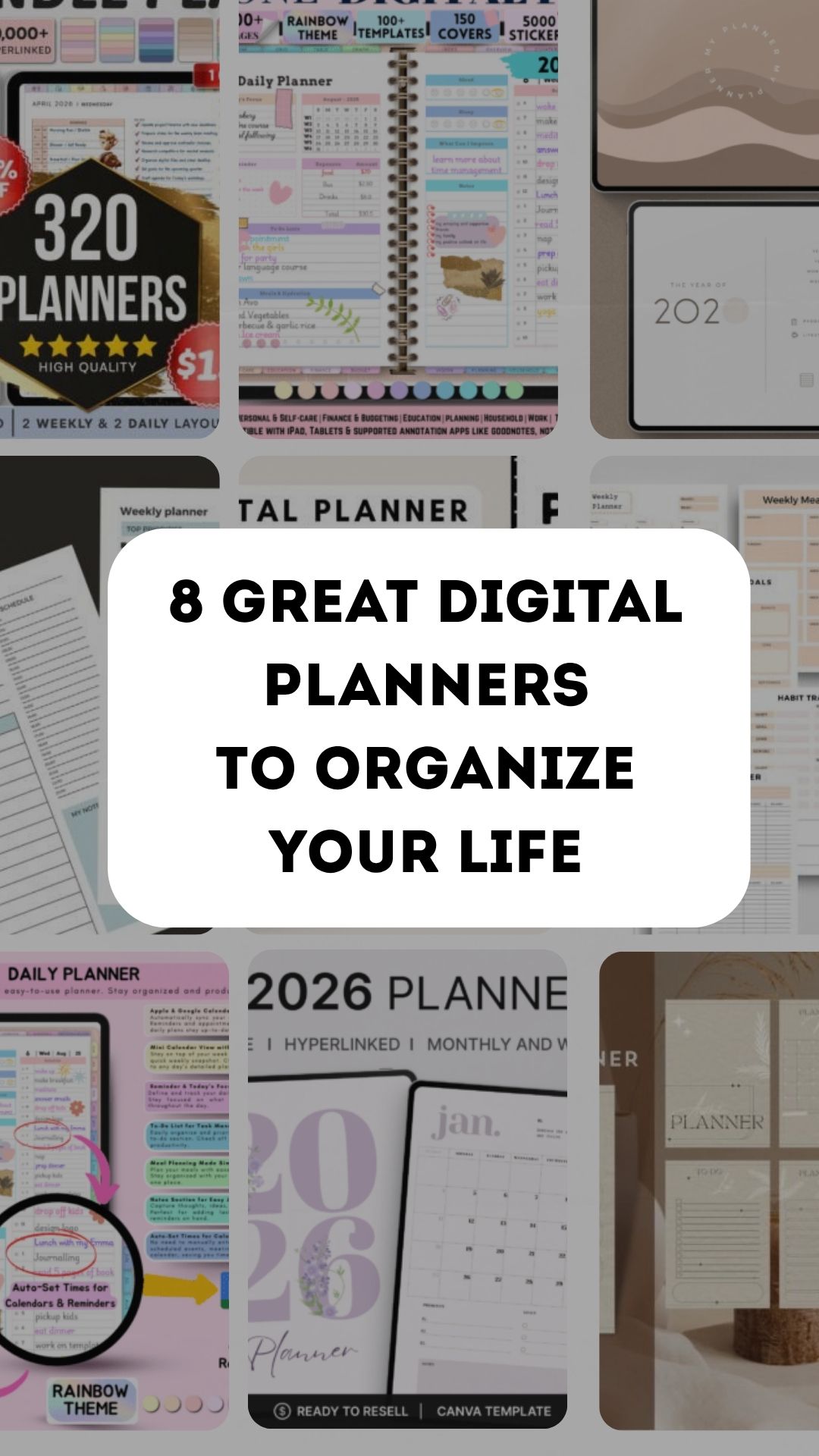
8 Digital Planners for Tablet Planning and Editable Canva Layouts
A well-designed digital planner makes it easier to keep everyday plans in one place. In this collection, I’ve gathered 8 customizable options for managing tasks, appointments, goals, notes, and routines. From Goodnotes-friendly layouts to editable Canva templates, there’s a planner here for every planning style.
Choose a digital planner by its working format first: a ready-to-import PDF and an editable Canva template solve different problems. This collection keeps both options, with the current date range and editing requirements clarified below. A planner page is not automatically a calendar app with reminders or live synchronization.
Choose the right digital planner format
| Planning need | Start with | What to check |
|---|---|---|
| Ready-to-use tablet planning | Rainbow all-in-one PDF | Large-file and app requirements |
| Reusable undated pages | Undated digital planner | PDF annotation app and excluded devices |
| A small editable page set | Eight-page Canva collection | Canva editing before print or export |
| Day and week only | Daily and weekly Canva pages | Two layouts rather than a full dated book |
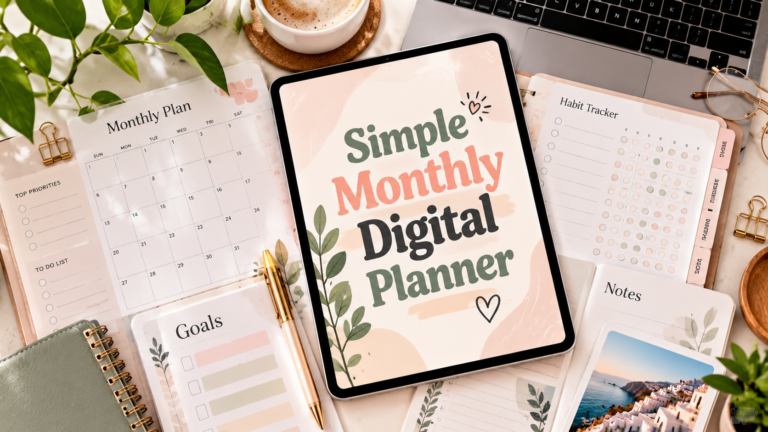
1. All-in-One Digital Planner | Rainbow Theme
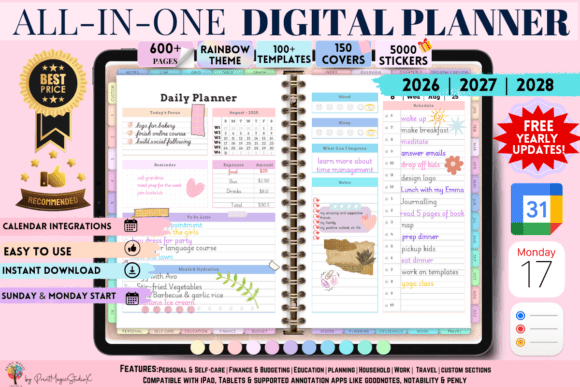
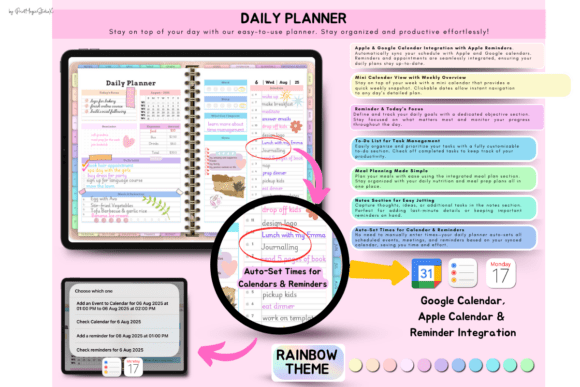
This planner feels like a complete command center for everyday life. I can organize goals, study plans, budgets, travel, and personal tasks in one colorful space, then customize it with thousands of stickers, covers, and sections. Apple and Google integration makes it especially convenient across devices.
The current listing describes 86 planning templates, 5,000 stickers and 150 covers, with PDF access instructions and calendar integration features. It also states that a paid GoodNotes account is needed for large files. Check the supplied 2026–2028 files and setup instructions before assuming that every device offers identical navigation or synchronization.
2. All-in-One Digital Planner, Goodnotes
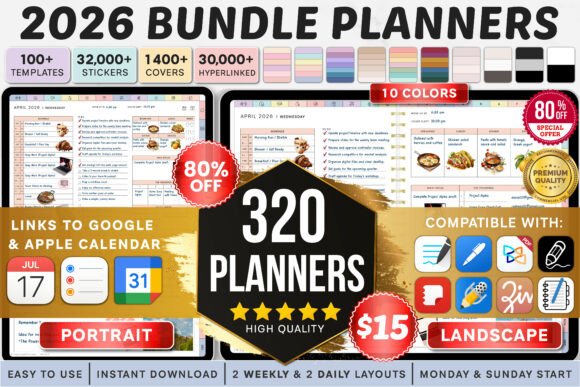
I’d use this planner as one home for my schedule, tasks, notes, and personal goals. Made for Goodnotes, it lets me write naturally on screen and keep everyday plans together instead of bouncing between scattered apps. It’s a convenient choice for building an organized digital routine. Also compatible with google and apple calendar, other apps.
The listing currently describes a 2026 bundle with landscape and portrait variants, multiple color themes, Monday and Sunday starts, and two daily and weekly layout choices. Calendar and reminder integrations are seller-described features, so use the supplied instructions to check their setup. This is a dated bundle rather than an automatically undated notebook.
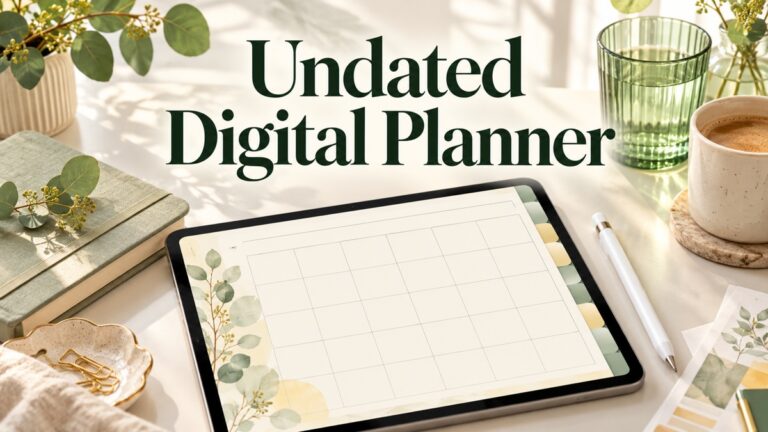
3. Undated Digital Planner
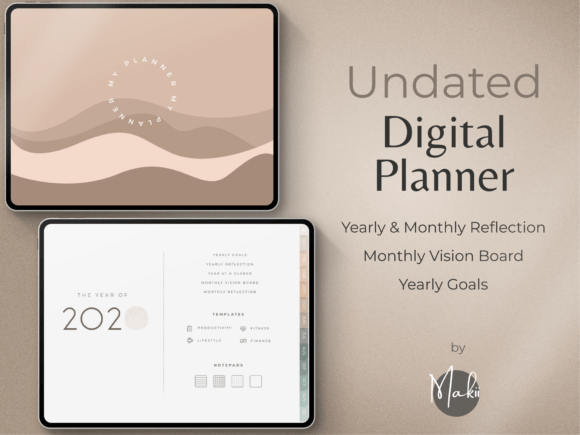
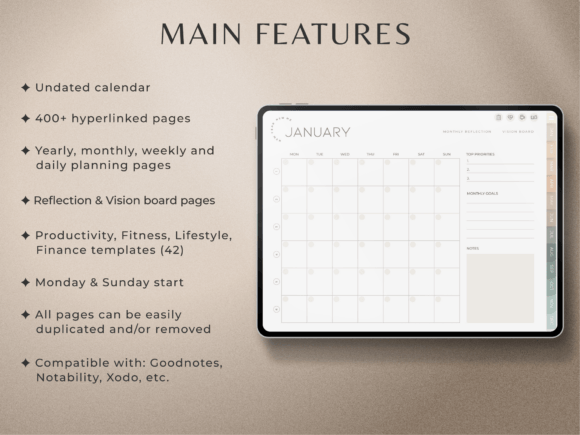
I like that this digital planner doesn’t lock me into a calendar year. I can begin whenever I’m ready, skip busy weeks without wasting pages, and reuse the layout again later. It is so clean and minimalist that it won’t distract you from your main tasks. It’s ideal for planning daily tasks, weekly priorities, and monthly goals at a pace that suits my life.
The product supplies a PDF guide linking to an undated hyperlinked planner, Monday and Sunday starts, covers and 250 pre-cropped stickers. The seller names Goodnotes and other PDF annotation apps but excludes OneNote, Kindle, reMarkable and Chromebooks, and does not recommend printing or primary phone use. Those limits make app choice important before download.
4. Aesthetic Digital Planner for Canva
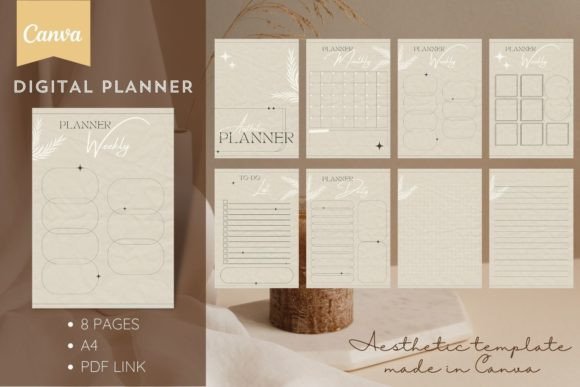
This planner is a great fit when I want my planning space to look as good as it works. I can personalize the Canva design with my own colors, fonts, and details, then organize appointments, tasks, goals, and notes in a layout that feels genuinely mine.
The stated package is eight A4 pages accessed through a PDF containing a Canva link: a cover, monthly page, two weekly pages, daily page, to-do list and two notes sheets. A free or Pro Canva account is supported. Edit first and export the layout you need; the page list does not itself promise a complete linked tablet planner.
5. In-Demand PLR Cute Digital Planner Canva
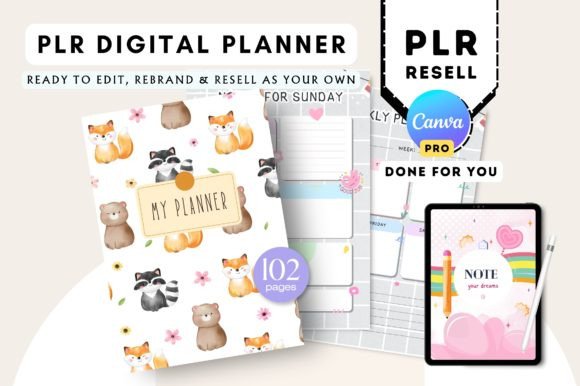
This cute planner gives me a playful, customizable way to organize everyday plans while keeping the design personal. I can edit its colors, fonts, and elements in Canva, then use it for schedules, to-do lists, and goals—or adapt the template into my own branded digital product. Check the supplied license and editing requirements before planning commercial reuse.
The listing describes 102 undated Canva templates with hyperlinks and a five-page sticker book, and explicitly requires Canva Pro for access. That is a material difference from a free-account template. It is marketed with PLR permissions, but inspect the actual included terms and source files before planning any commercial reuse or promising redistribution rights to others.
6. Daily and Weekly Digital Planner Canva
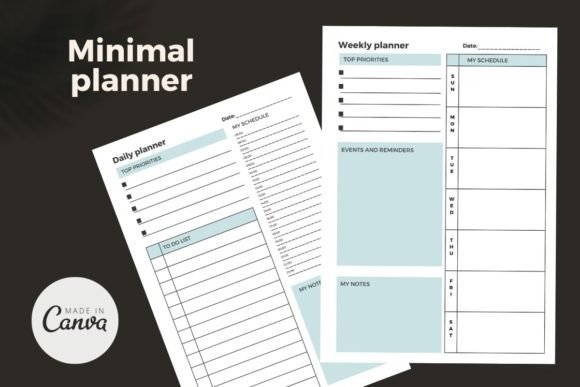
Some days need a detailed plan, while others only need a quick weekly overview. This digital planner gives me both options in editable Canva pages, so I can shape my schedule around changing priorities, customize the design to my taste, and keep everyday tasks from slipping through the cracks.
The download describes two Canva planner layouts for daily and weekly use, accessed through the supplied PDF. The seller states that the elements and fonts work with a free Canva account. Choose this focused set when you mainly want those two views; it should not be confused with a full-year book containing hundreds of individual dated pages.
7. 2026 Digital Planner Canva Template
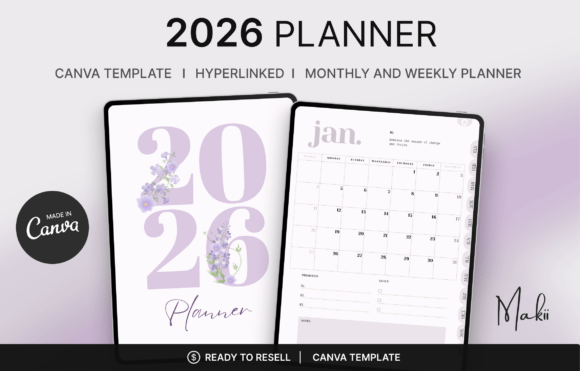
I’d choose this planner to set up 2026 exactly the way I want it. The hyperlinked Canva template makes navigation quick, while editable fonts, colors, layouts, and sections let me create a planning system that fits my schedule instead of forcing me into a fixed format.
The verified description lists 73 hyperlinked pages covering the 2026 year overview, monthly and weekly plans, and monthly reviews. Access comes through a PDF linking to the editable Canva design. Exported PDF navigation is described for annotation apps, but the calendar remains 2026. Choose it for that date range rather than expect an included 2027 replacement.
8.Editable Canva Planner Templates
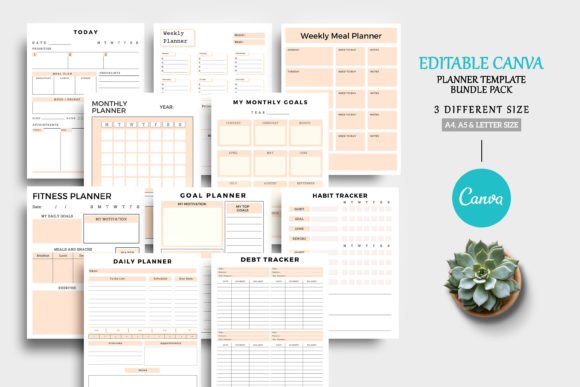
This digital planner is ideal when I want to build a planning system around my own routine. I can customize the Canva templates with different colors, fonts, pages, and sections, then use the finished layout for tasks, schedules, goals, and notes—or turn it into a branded planner design.
The seller specifies A4, A5 and Letter options, with PDF and JPG files plus a Canva link. The page collection spans daily, weekly and monthly planning with meal, budget, fitness and checklist layouts. That makes it useful as a customizable collection; verify any intended tablet-navigation features separately, because editable pages do not automatically mean linked PDF tabs.
Conclusion
The right digital planner can make daily life feel more organized without adding extra complexity. Whether you prefer a ready-to-use Goodnotes layout or an editable Canva template, choose a format you’ll enjoy opening every day. Start with a few priorities, keep your plans visible, and adapt the pages as your routine changes.
PDF digital planners versus editable Canva templates
A hyperlinked PDF is a document you import into a compatible annotation app. Canva templates are source layouts you edit before exporting. Importing a Canva page into a note-taking app does not add working tabs or app-specific features that were absent from the exported file. Match the download to the device and app you actually use.
For app-specific choices, compare our GoodNotes planner templates. If the main task is schoolwork, the study planner collection separates printable, Canva and Notion options. A dedicated undated digital planner is worth comparing when you want to start at any point in the year.
Set up a digital planner without overbuilding it
Begin with your next week rather than completing every tracker at once. Add the appointments, deadlines and two or three priorities you need to see, then decide whether the daily pages add useful detail. Check one navigation link and one handwriting page before building a large routine around a new file.
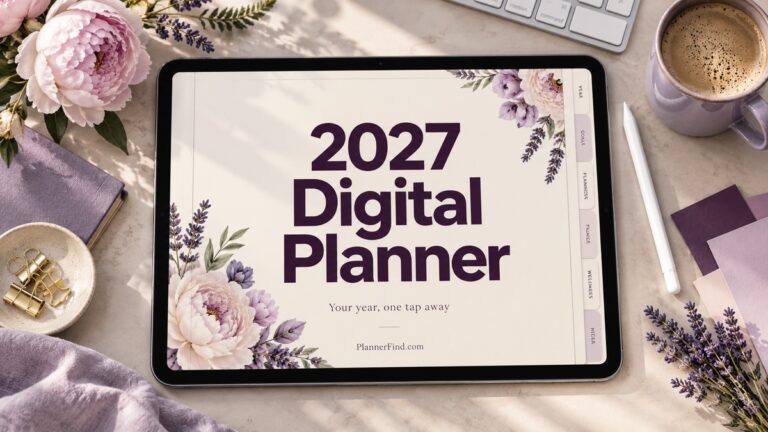
For dated resources, confirm the supplied year before download. A 2026 file is not automatically a 2027 planner, and a seller’s update promise should be checked against the actual archive. Keep a clean original copy before editing or rearranging linked pages, and use the creator’s instructions for any calendar integration.

8 Comments